Submit Tax Exemption Forms
Submit Tax Exemption Forms Efficiently Using Sermonbox
This tutorial guides you through submitting a tax exemption form using Sermonbox
Go to sermonbox.com
1. Introduction
You will learn how to access the E-595E form, fill in your personal and organization details, upload the necessary documents, and submit your request for tax exemption approval.

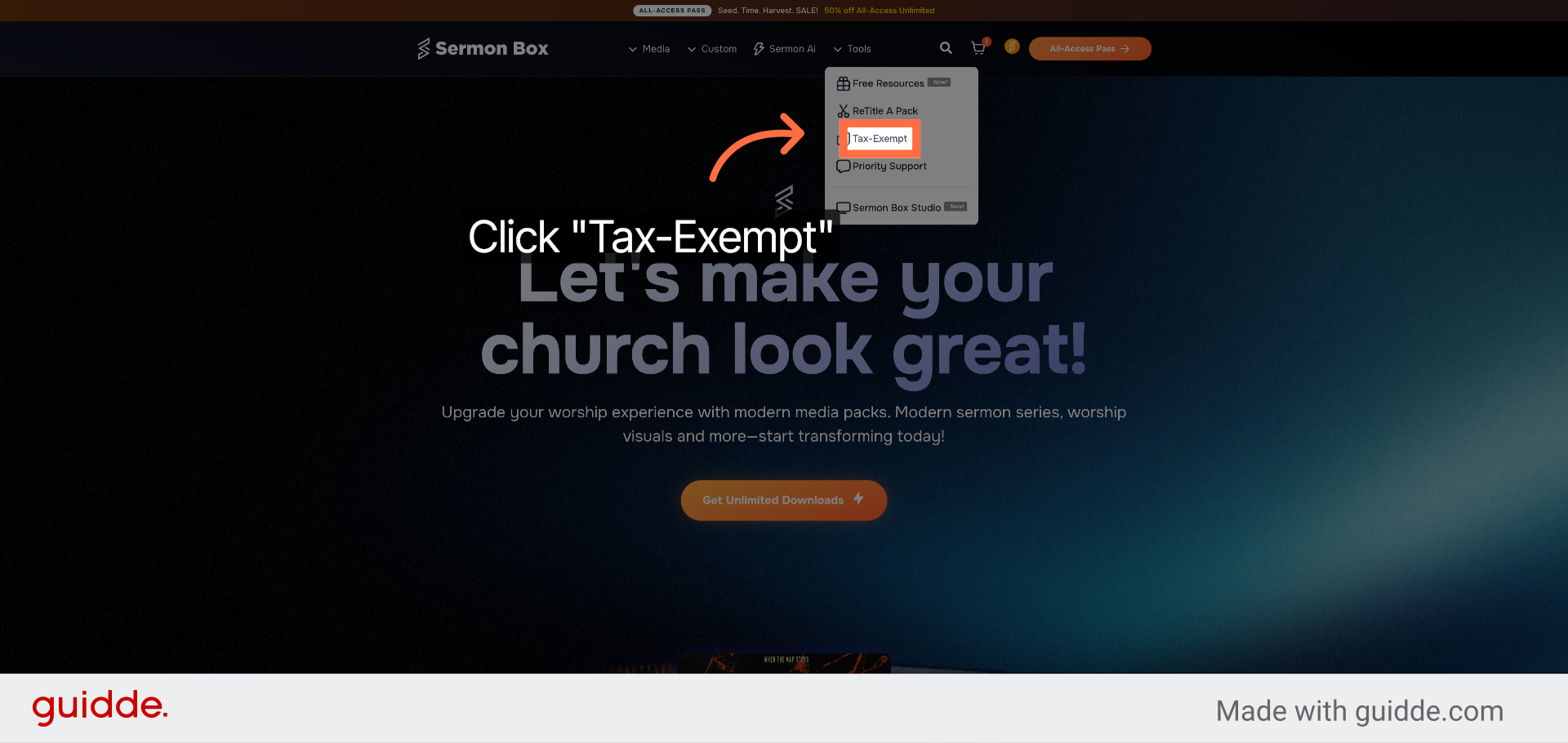
2. Click Tax-Exempt Tab
Click the "Tax-Exempt" tab to begin the tax exemption submission process.
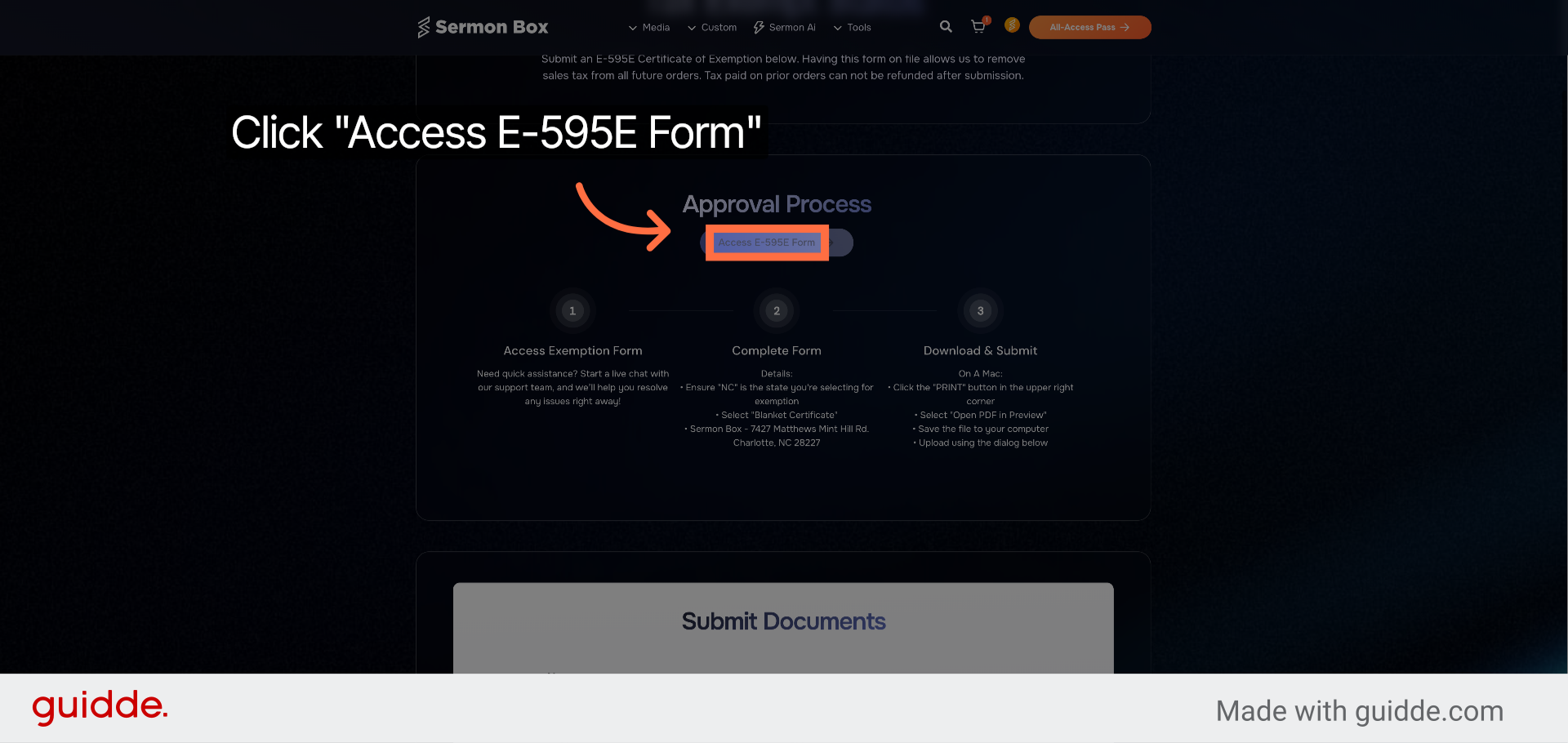
3. Access E-595E Form
Click "Access E-595E Form" to open the required tax exemption form.
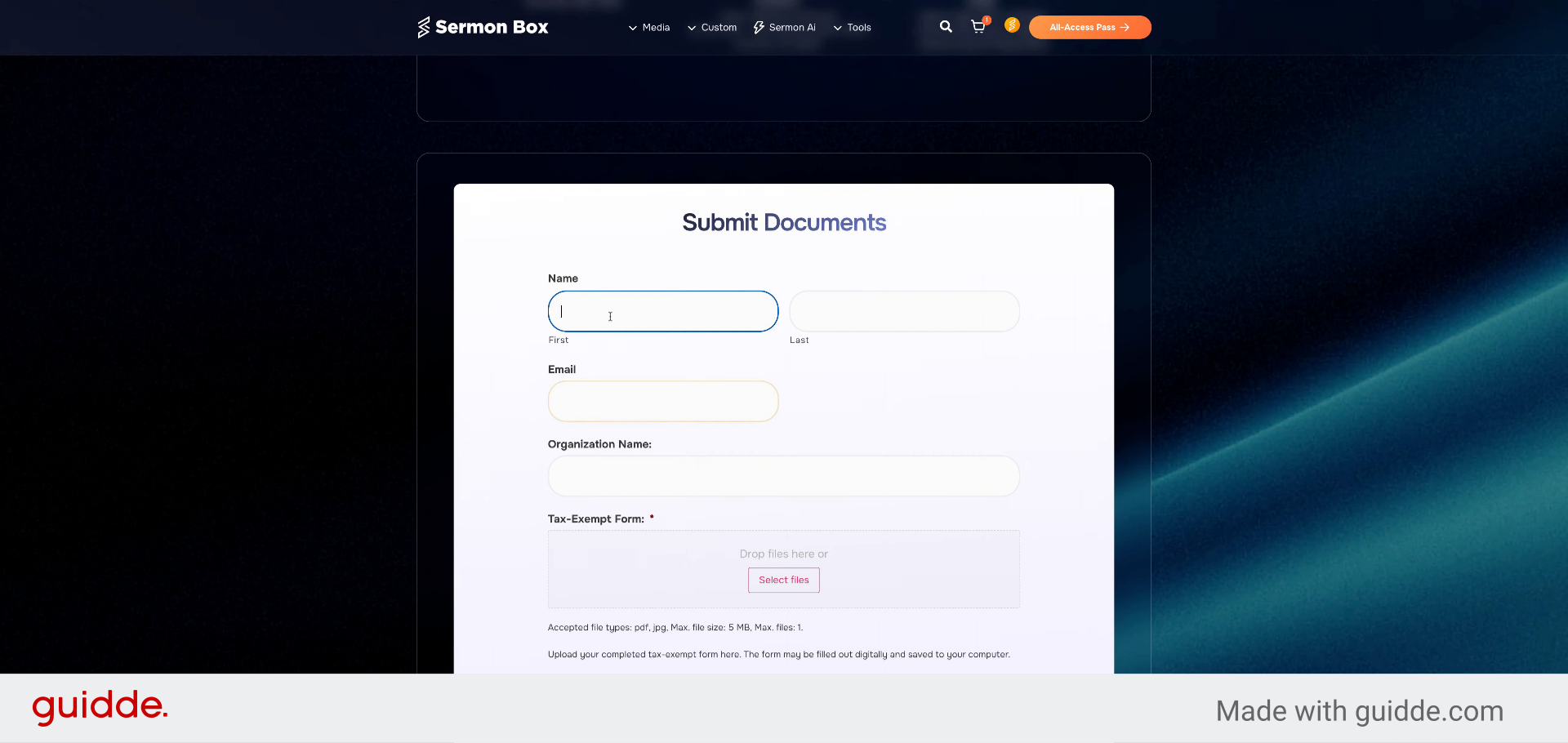
4. Fill First Name
Fill in your first name accurately for identification purposes.
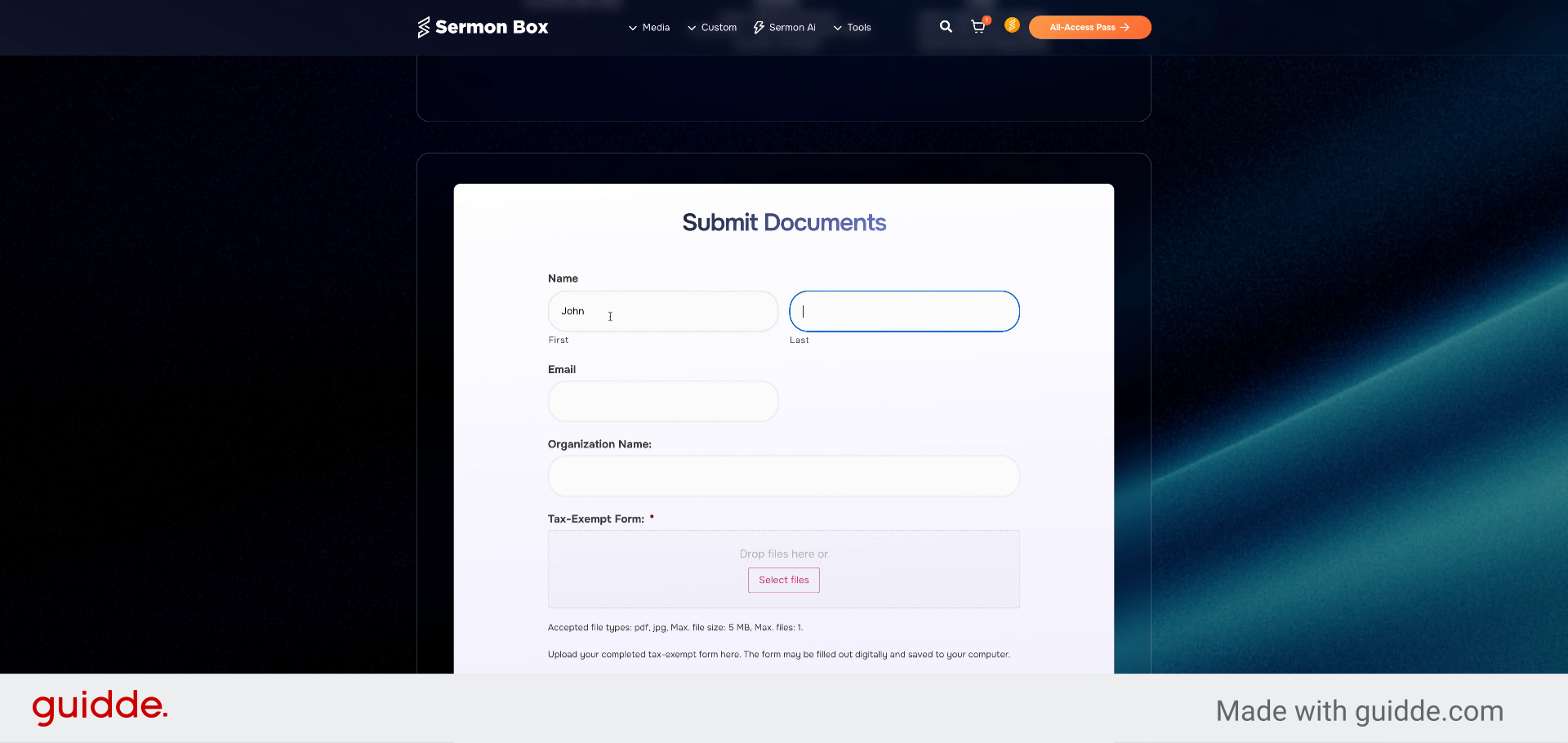
5. Fill Last Name
Fill in your last name to complete your personal information.
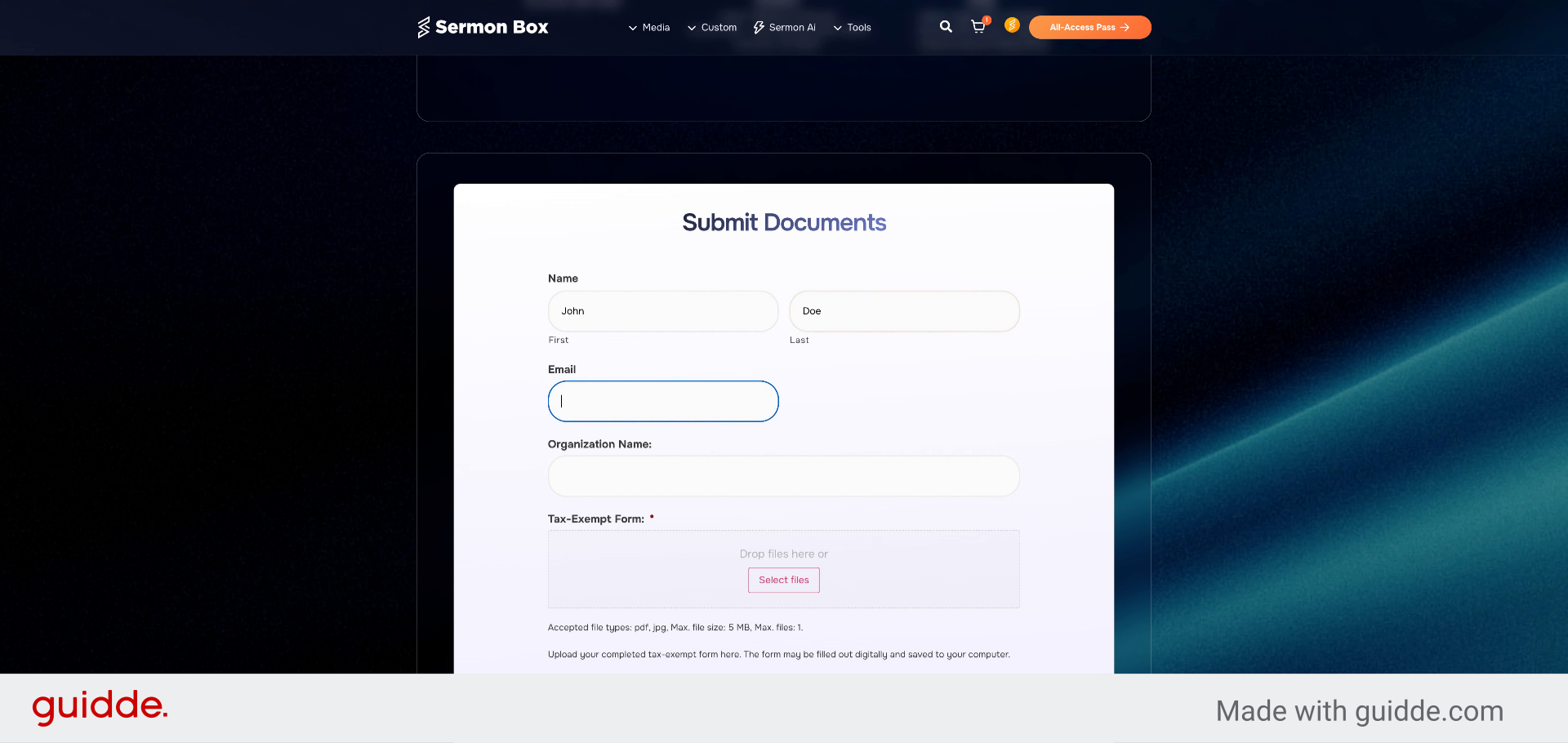
6. Fill Email
Fill in your username to associate with your account.
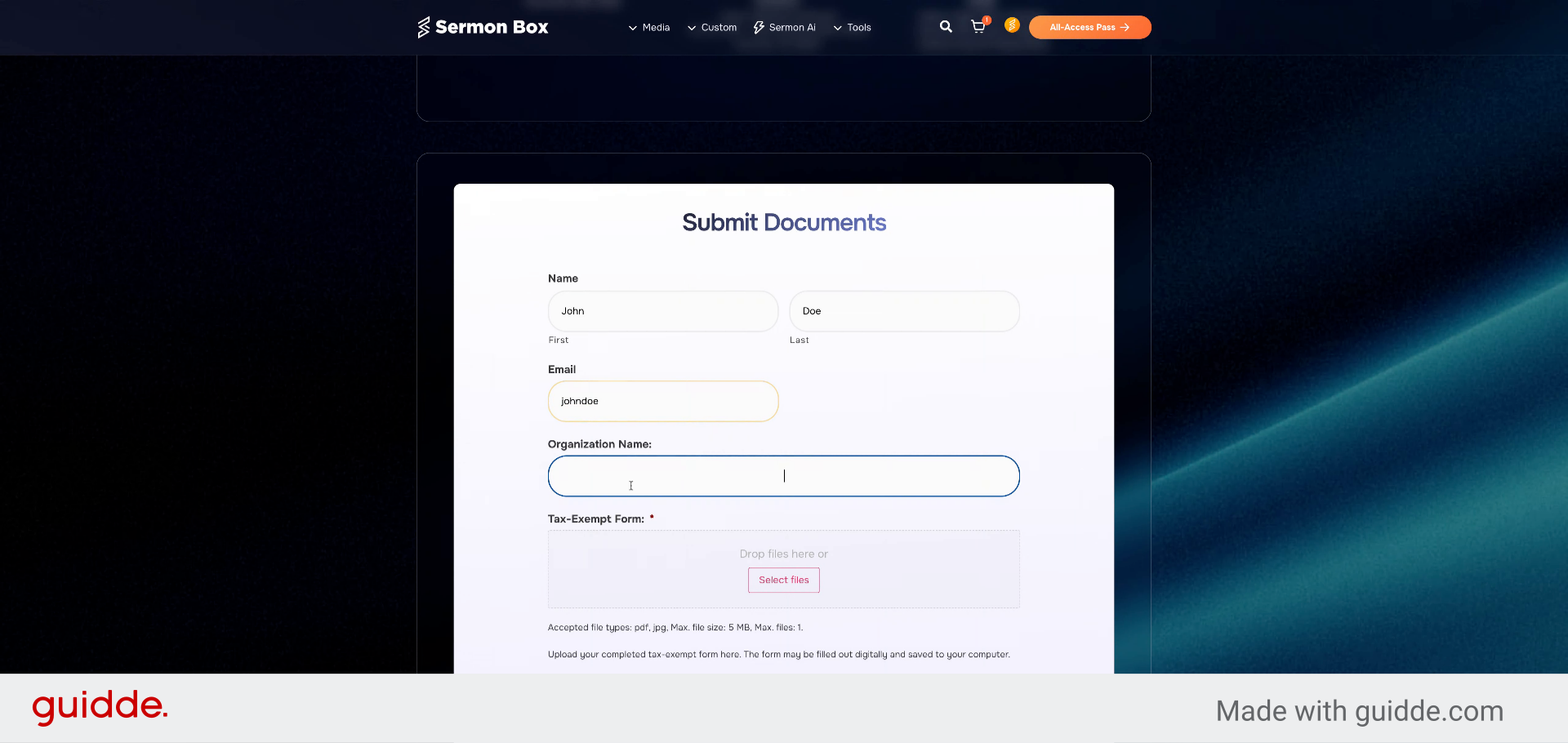
7. Fill Organization Name
Fill in the name of your organization to verify tax exemption eligibility.
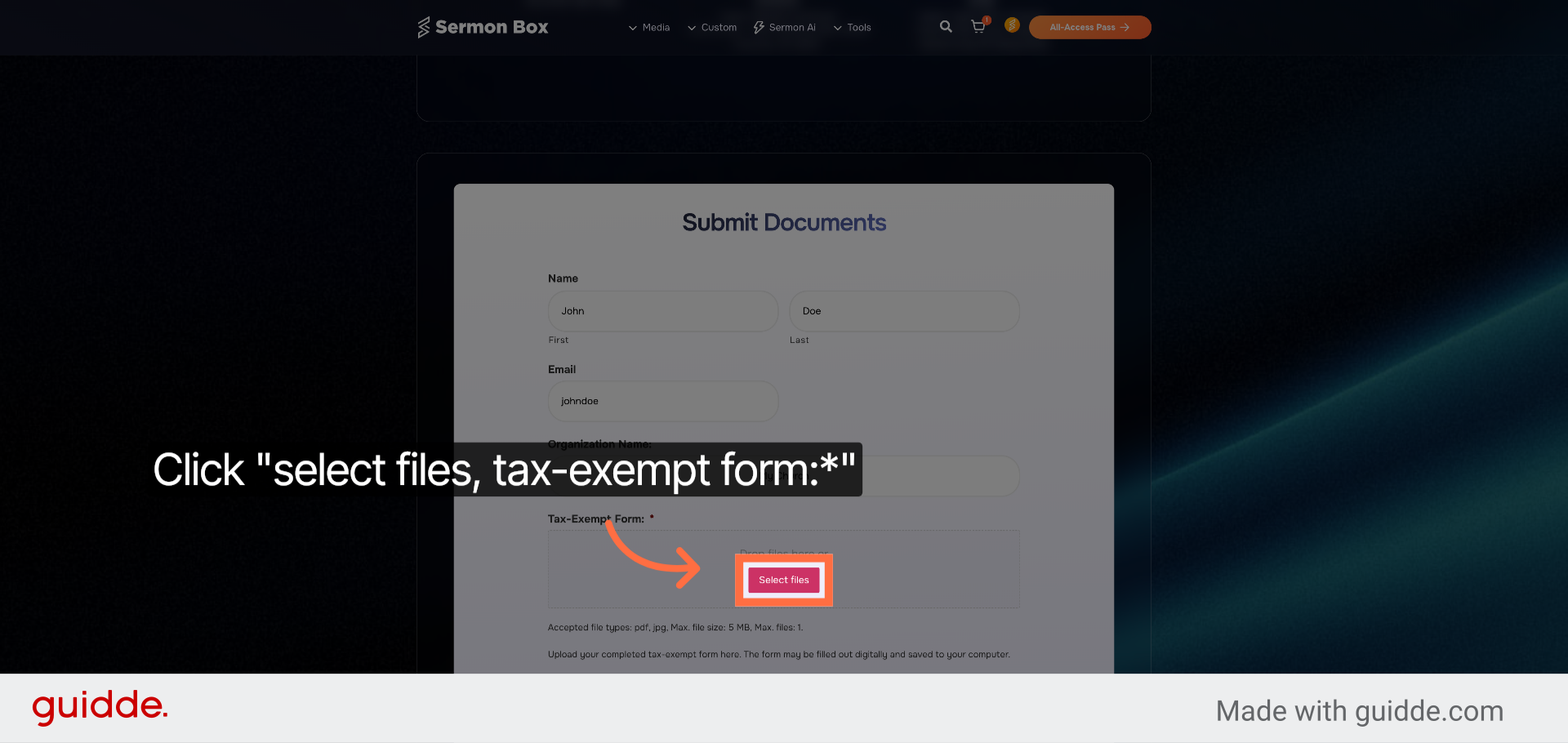
8. Upload Form E-595
Click "select files, tax-exempt form:*" to upload your completed tax exemption documents.
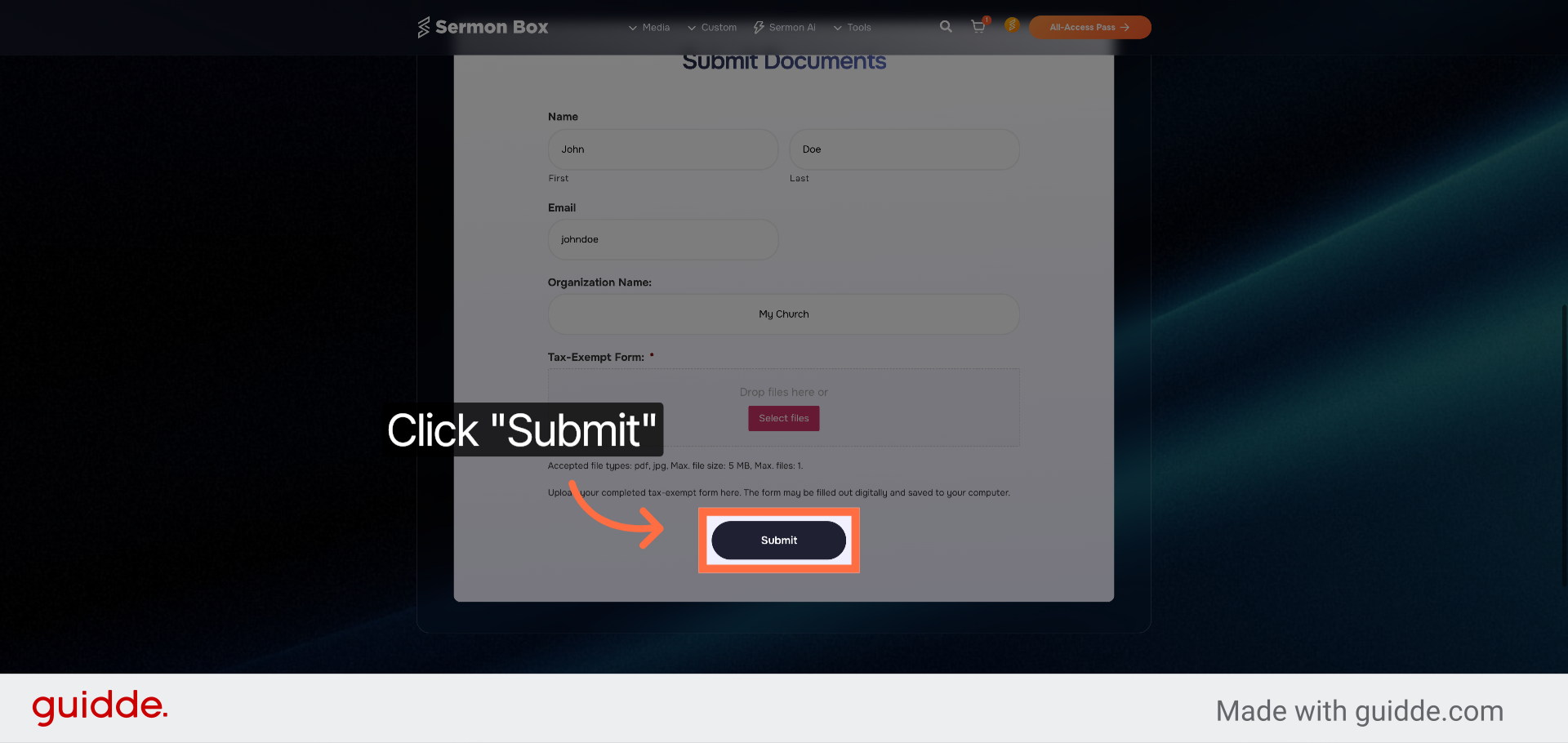
9. Submit Tax Exemption Form
Click "Submit" to finalize and send your tax exemption submission for processing.
You have successfully submitted your tax exemption form through the Sermonbox platform. Verify that you receive a confirmation email to ensure your submission was processed. For further assistance, consider reviewing related tax exemption resources or contacting support.
Related Articles
Submit Custom Sermon Series Order Using Sermonbox
Submit Custom Sermon Series Order Using Sermonbox This tutorial guides you through submitting a custom sermon series order using Sermonbox Go to sermonbox.com 1. Introduction Before starting, ensure you have your sermon details and preferences ready ...Access & Generate Using SermonAi
Access And Create Sermon Series Using SermonAi This tutorial guides you through accessing SermonAi in Sermonbox and creating a customized 4-week sermon series with supporting devotional content Go to sermonbox.com 1. Introduction Before starting, ...