Submit Custom Sermon Series Order Using Sermonbox
Submit Custom Sermon Series Order Using Sermonbox
This tutorial guides you through submitting a custom sermon series order using Sermonbox
Go to sermonbox.com
1. Introduction
Before starting, ensure you have your sermon details and preferences ready to create a personalized series tailored to your needs.
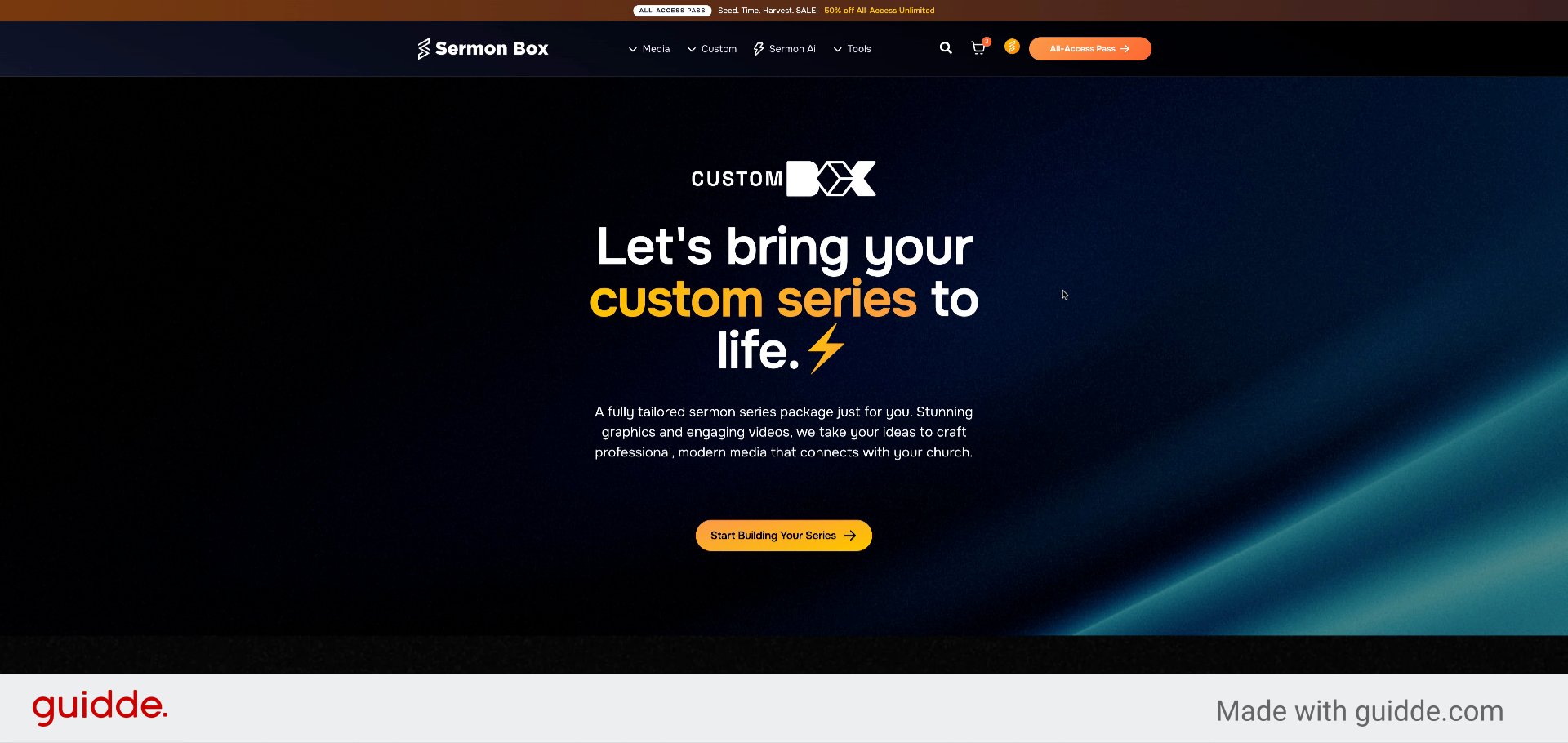
2. Select Custom Sermon Series
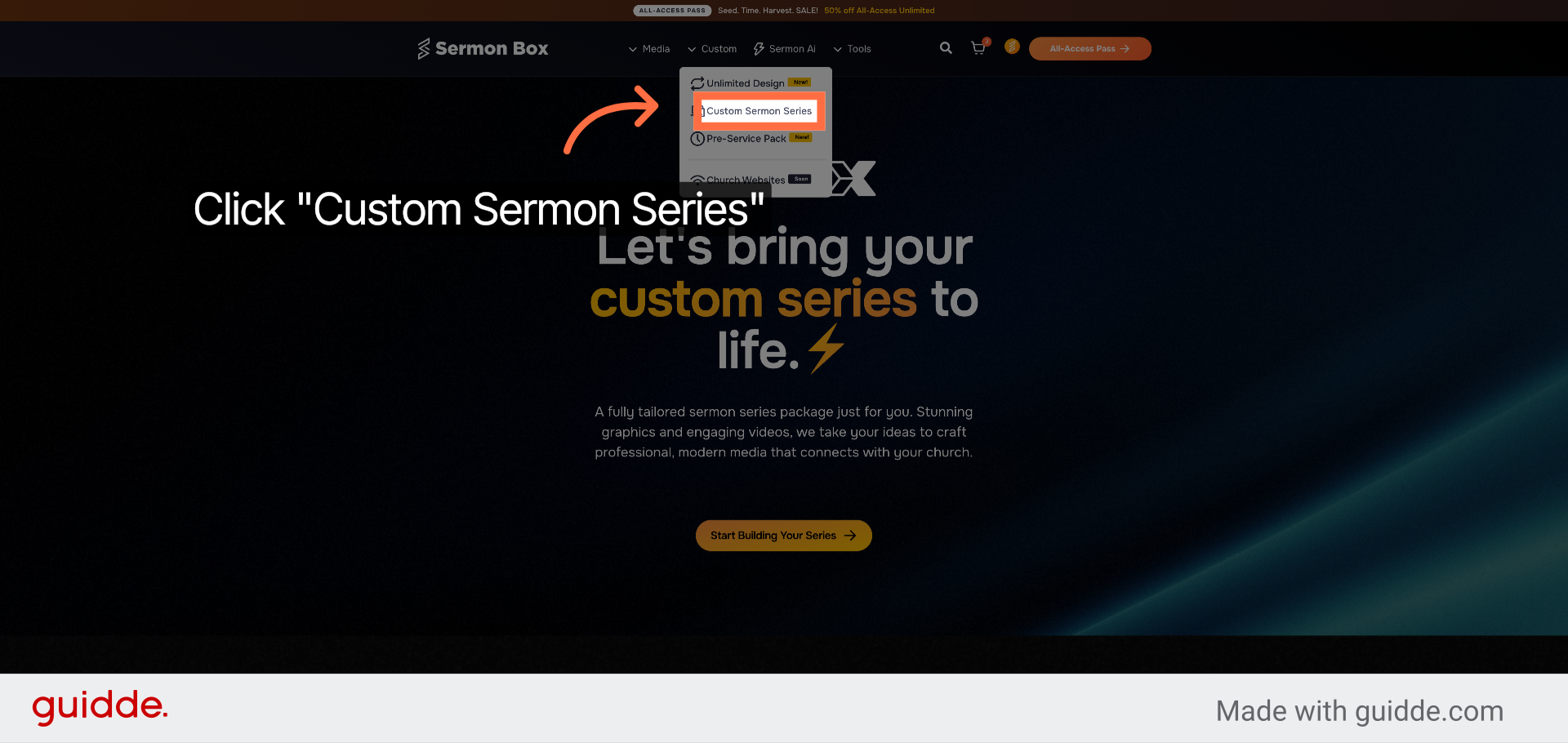
Click "Custom Sermon Series" to begin creating your personalized sermon series order.
3. Start Building Your Series
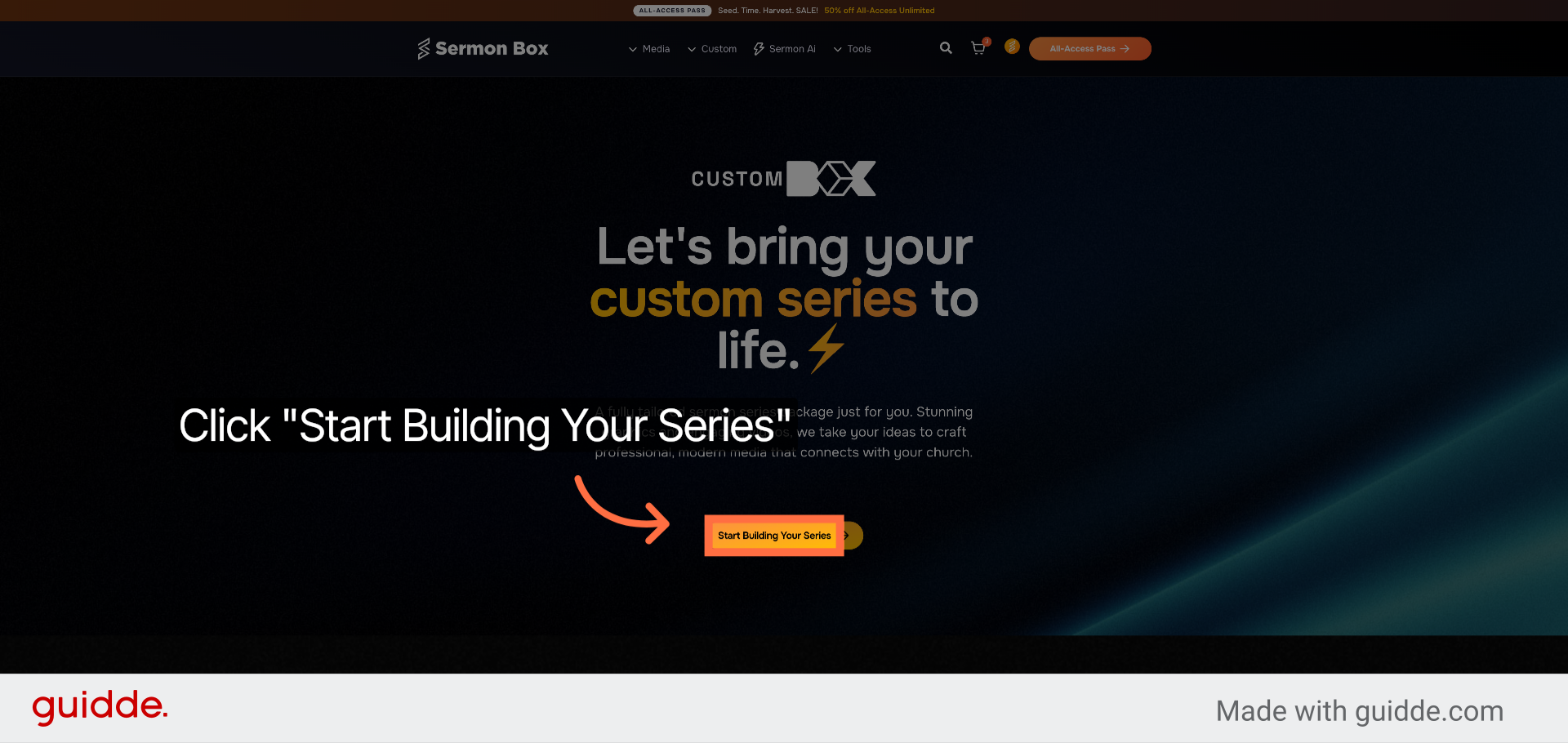
Click "Start Building Your Series" to initiate the setup process for your custom sermon series.
4. Choose a Package Type
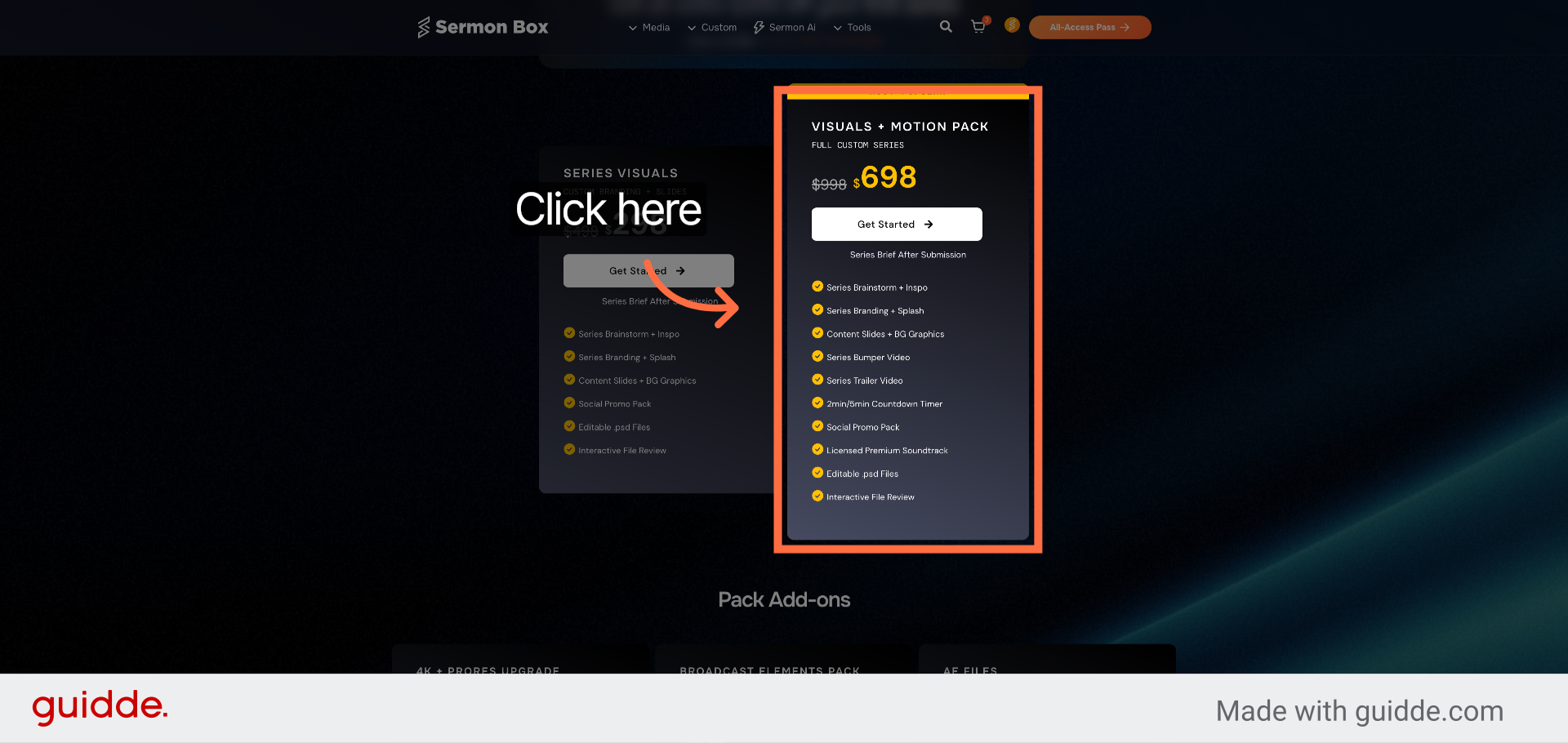
Choose your pack type. Our most popular package: the visuals and motion pack. Alternatively, you can choose the series visuals pack for static graphics only.
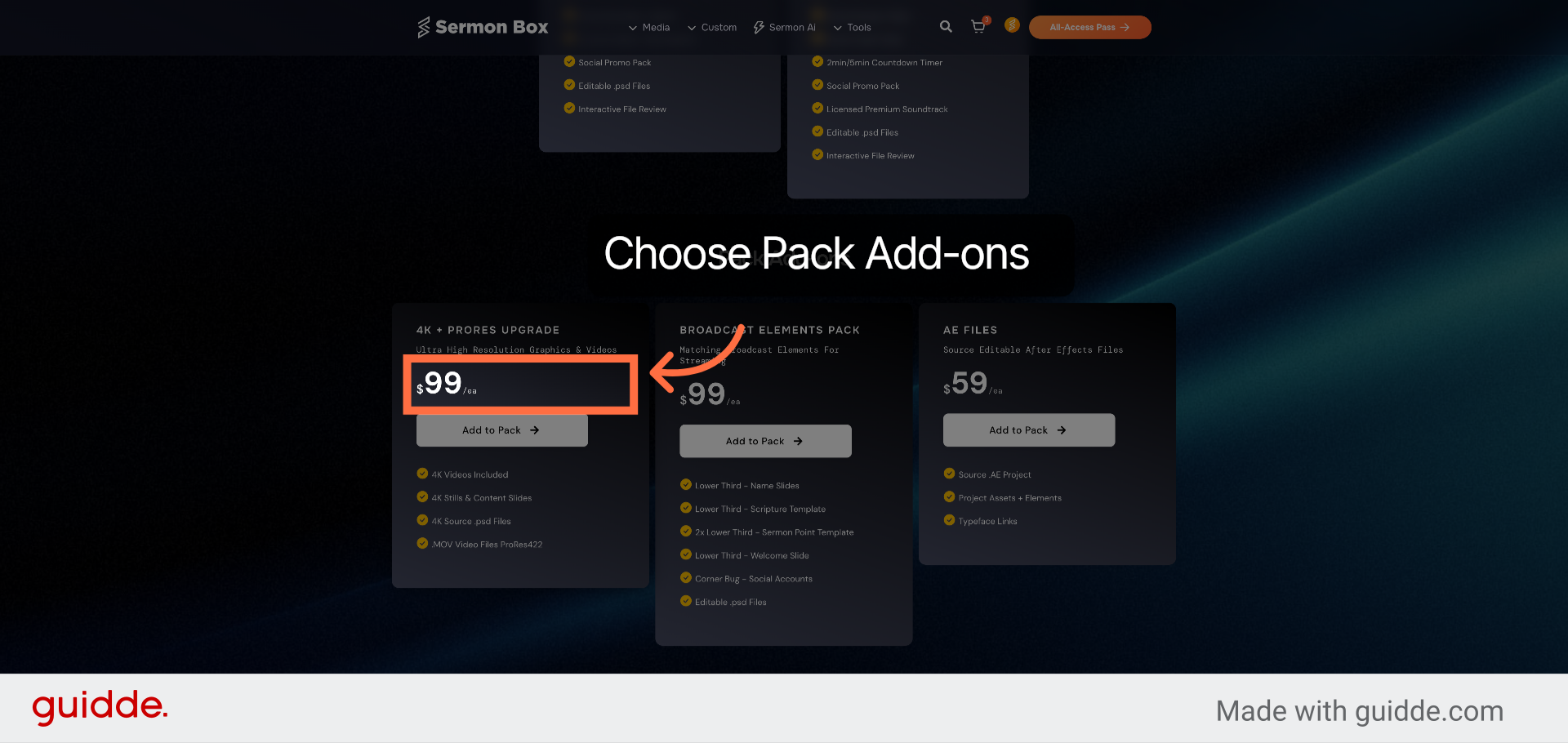
5. Choose Pack Add-ons
Select any pack add-ons and upgrades you'd like included with your order
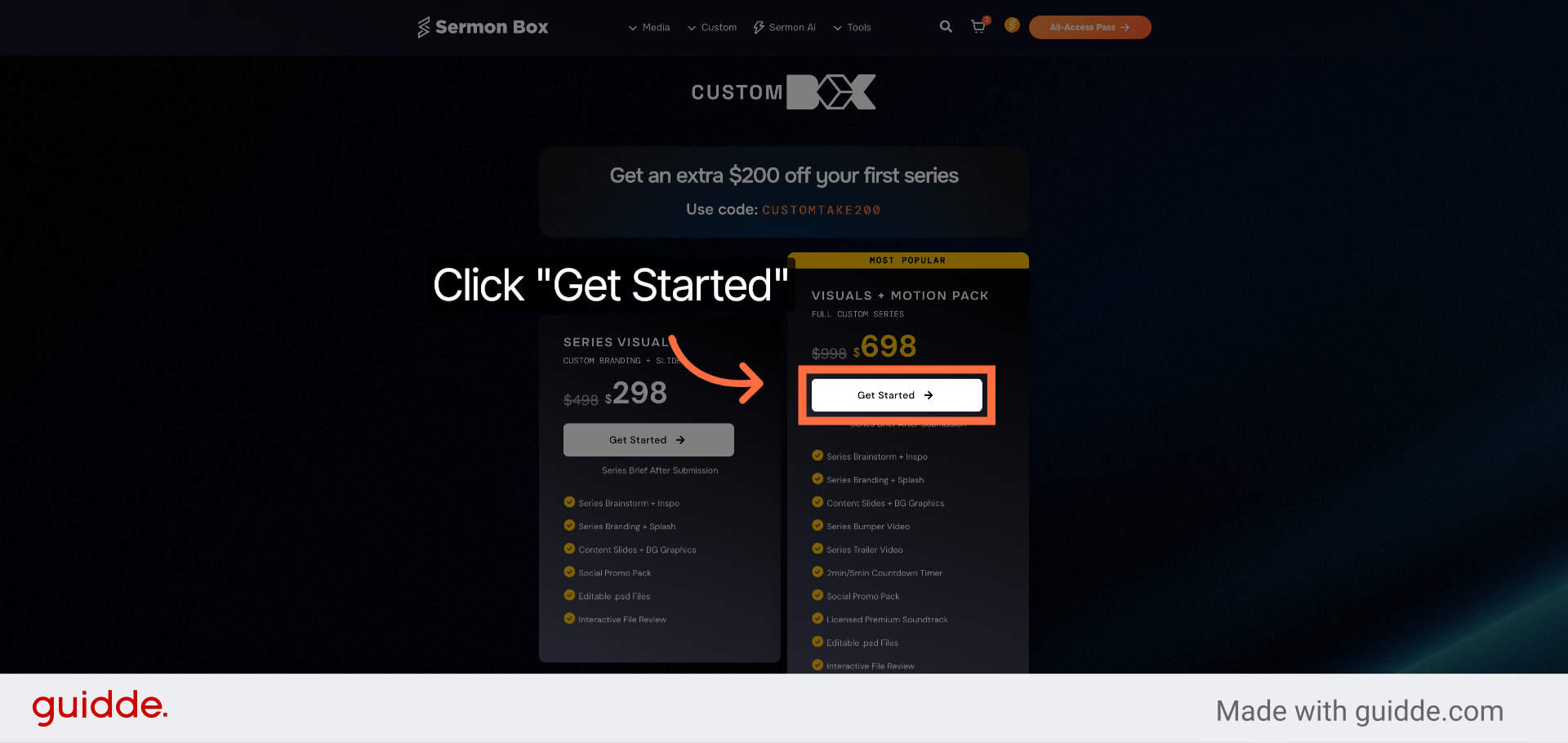
6. Begin Series Setup
Click "Get Started" to proceed to checkout. Once complete, you'll be redirected to the Custom Series Brief for addition information about your new sermon series.
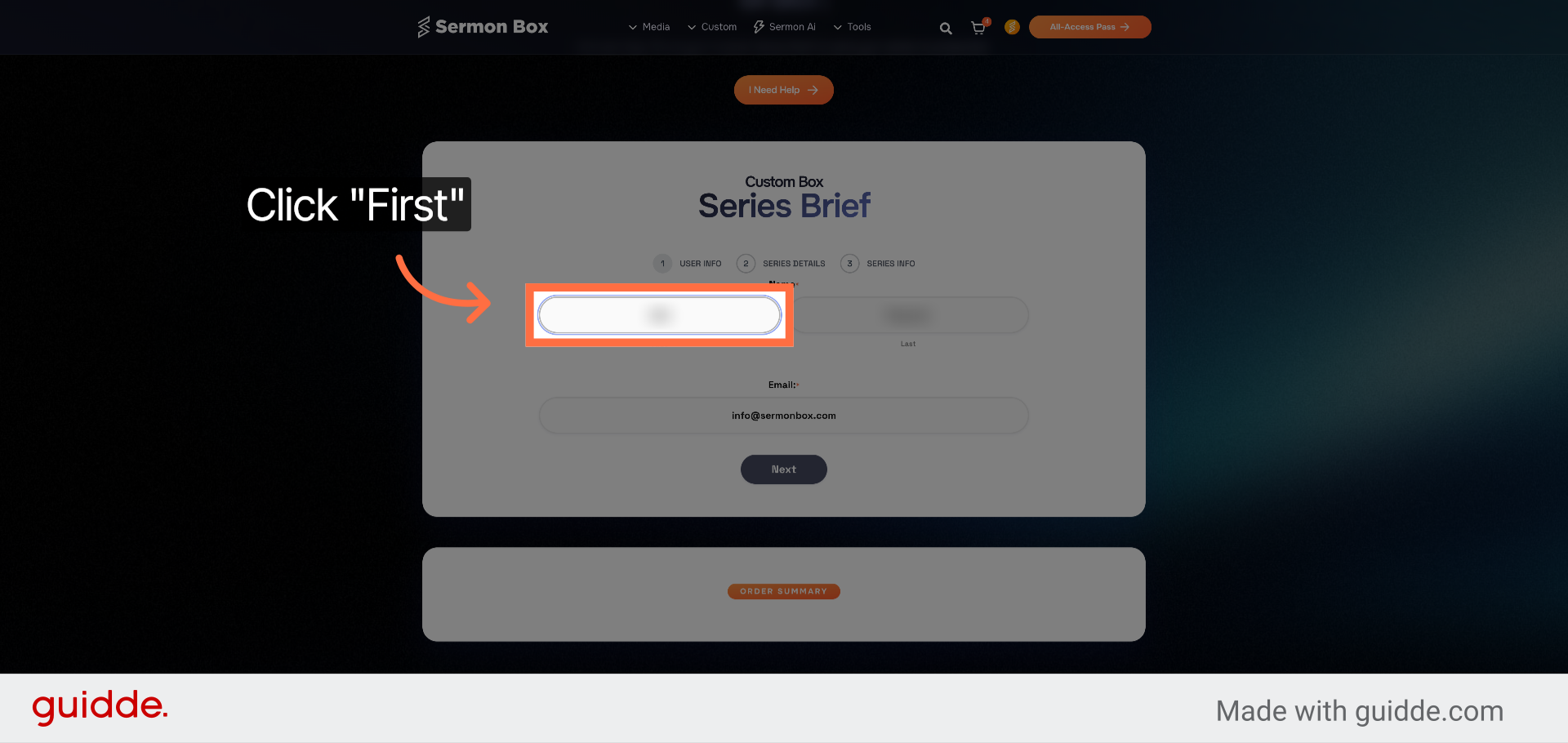
7. Enter Your Account Information
Fill out the point of contact information. The currently logged in account is automatically filled.
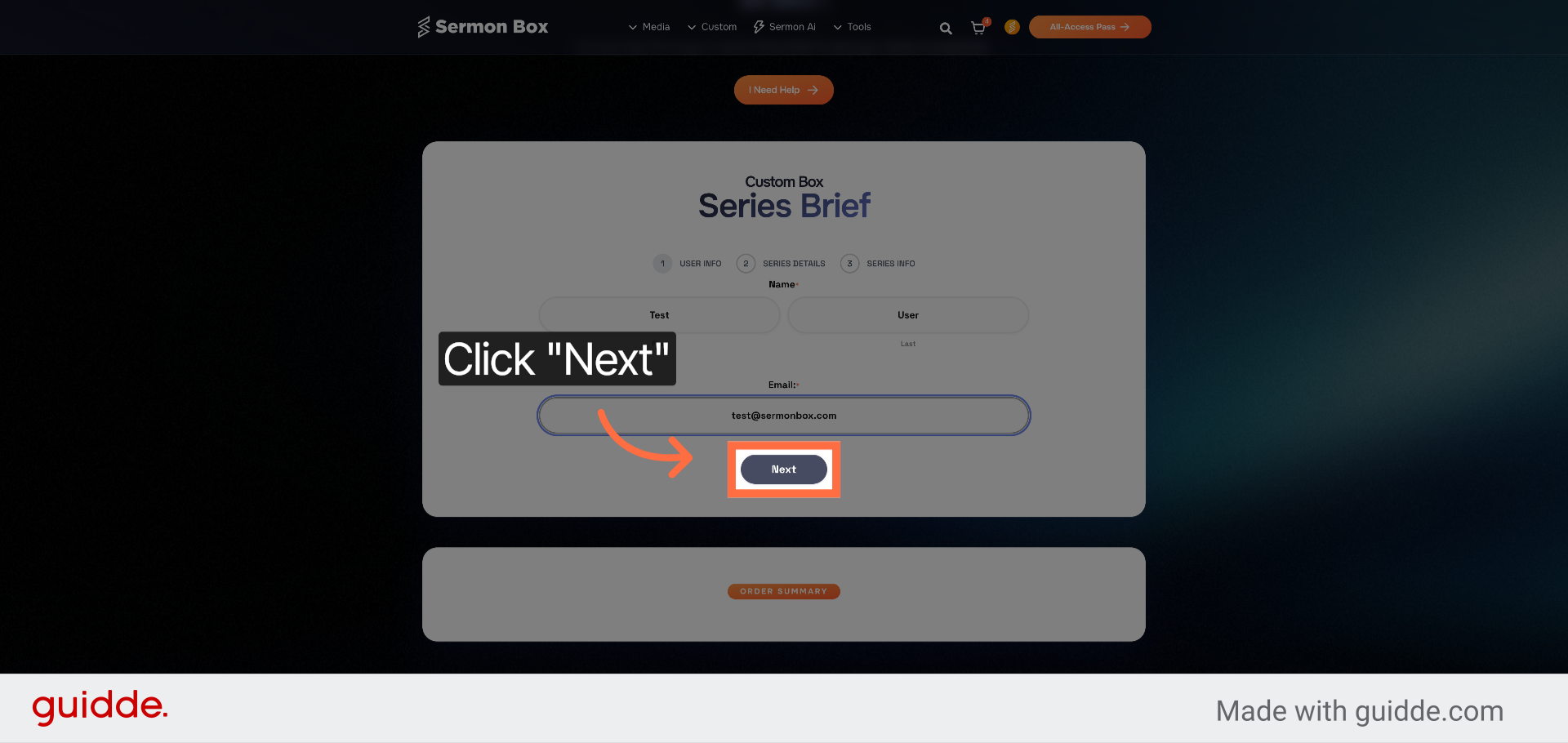
8. Proceed to Next Step
Click "Next" to continue to the following section of the order process.
9. Select Series Title Field
Click "Series Title:" to begin entering the title of your sermon series.
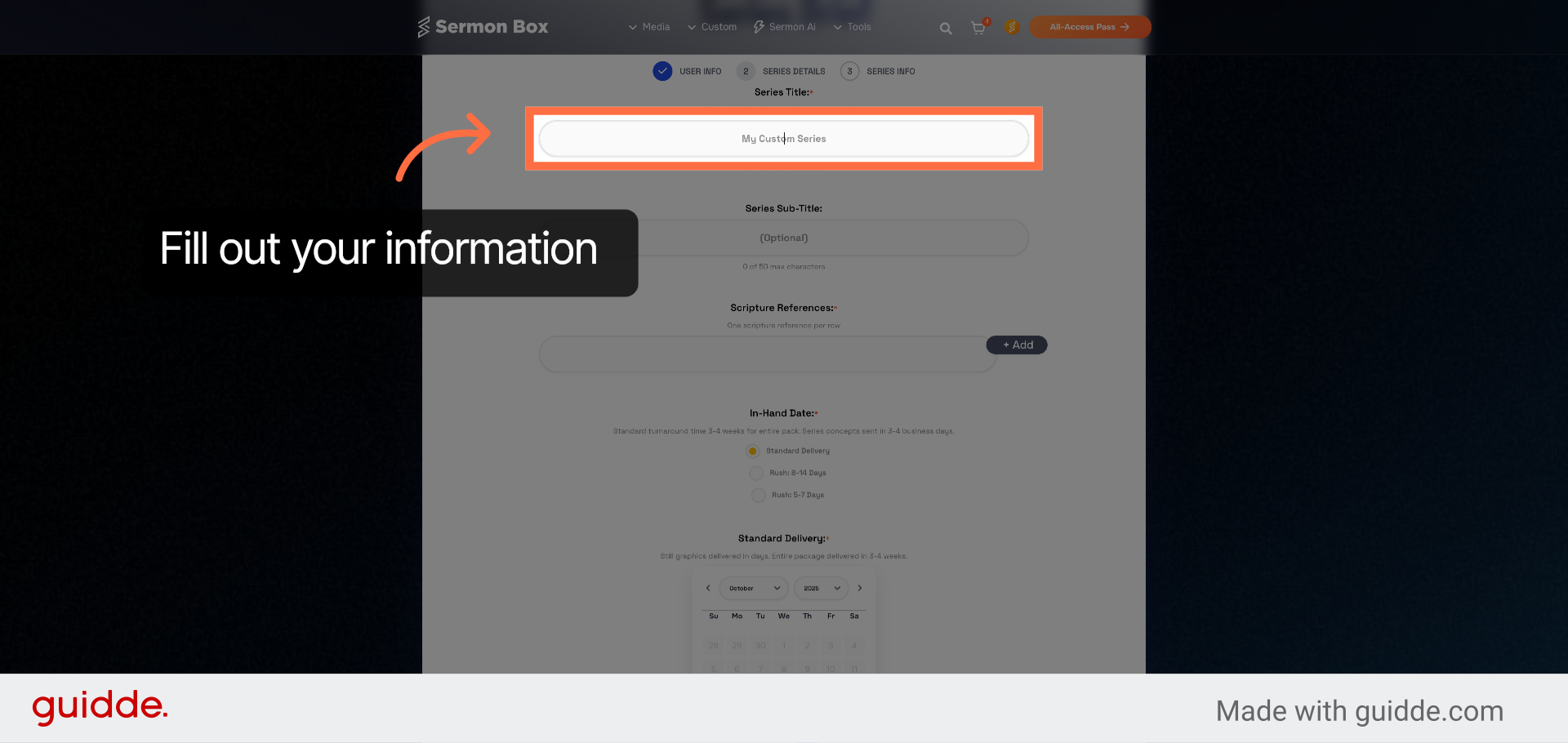
10. Enter Series Subtitle
Fill in the subtitle field to provide a brief description or tagline.
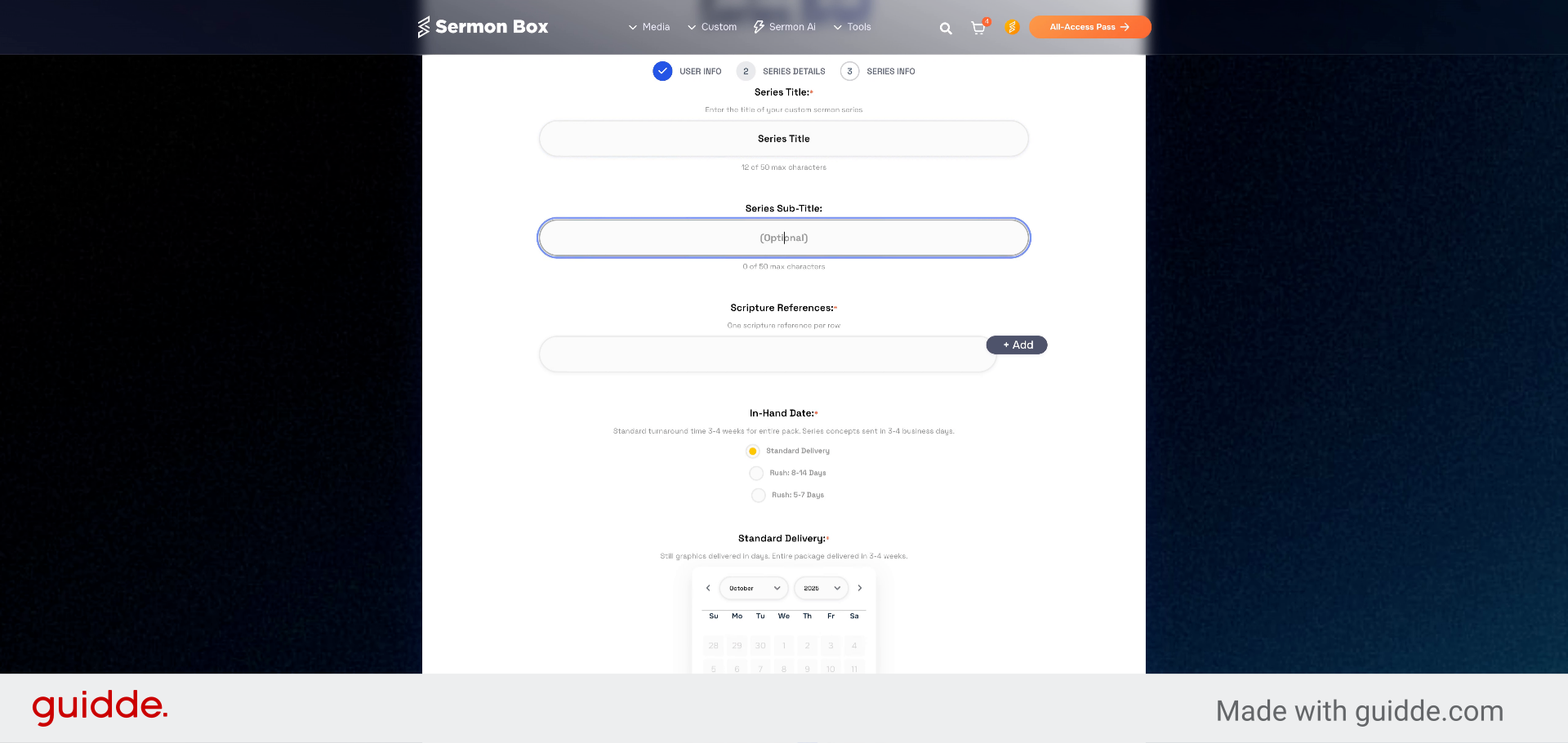
11. Enter Scripture Reference
Fill in the scripture reference field with your chosen verses for the series.
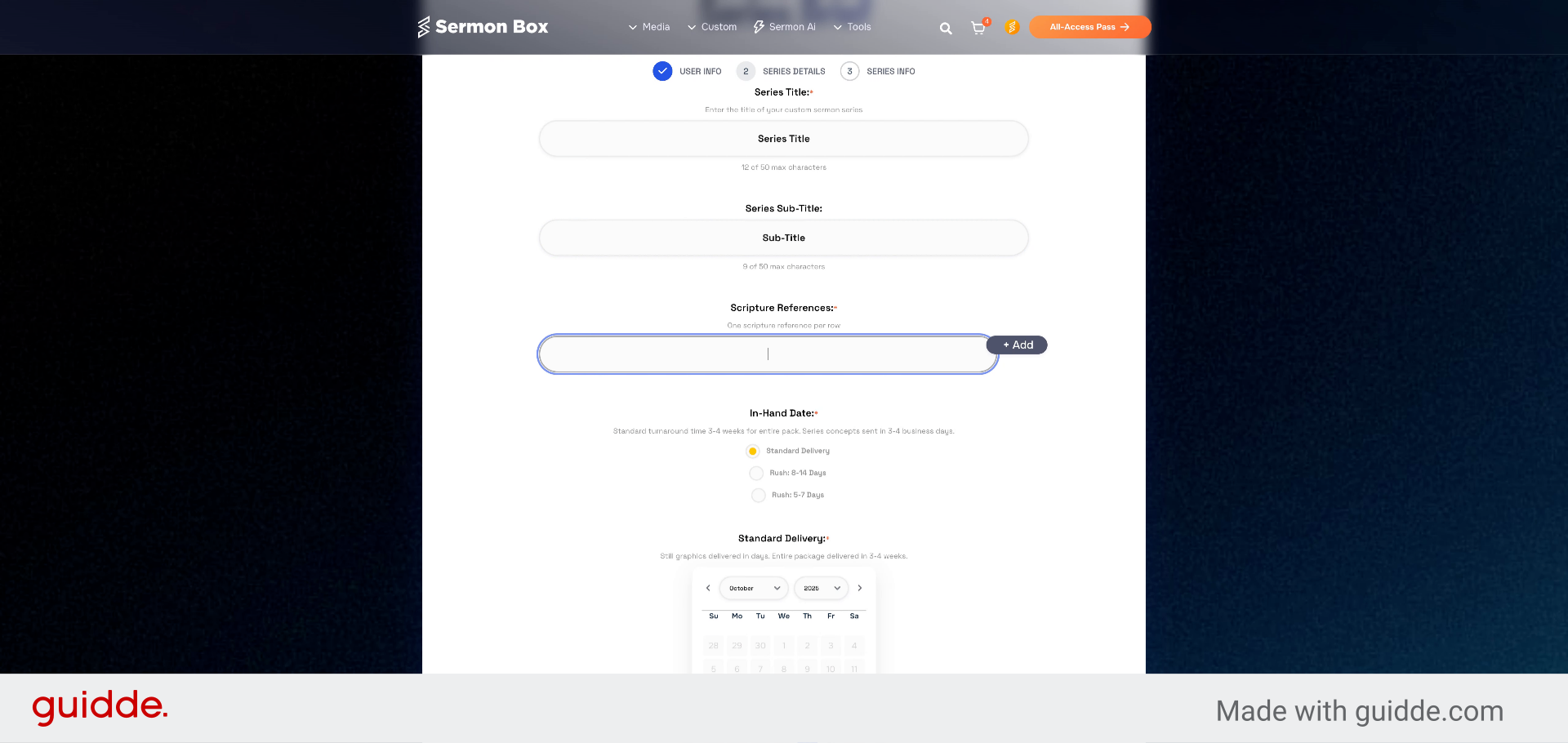
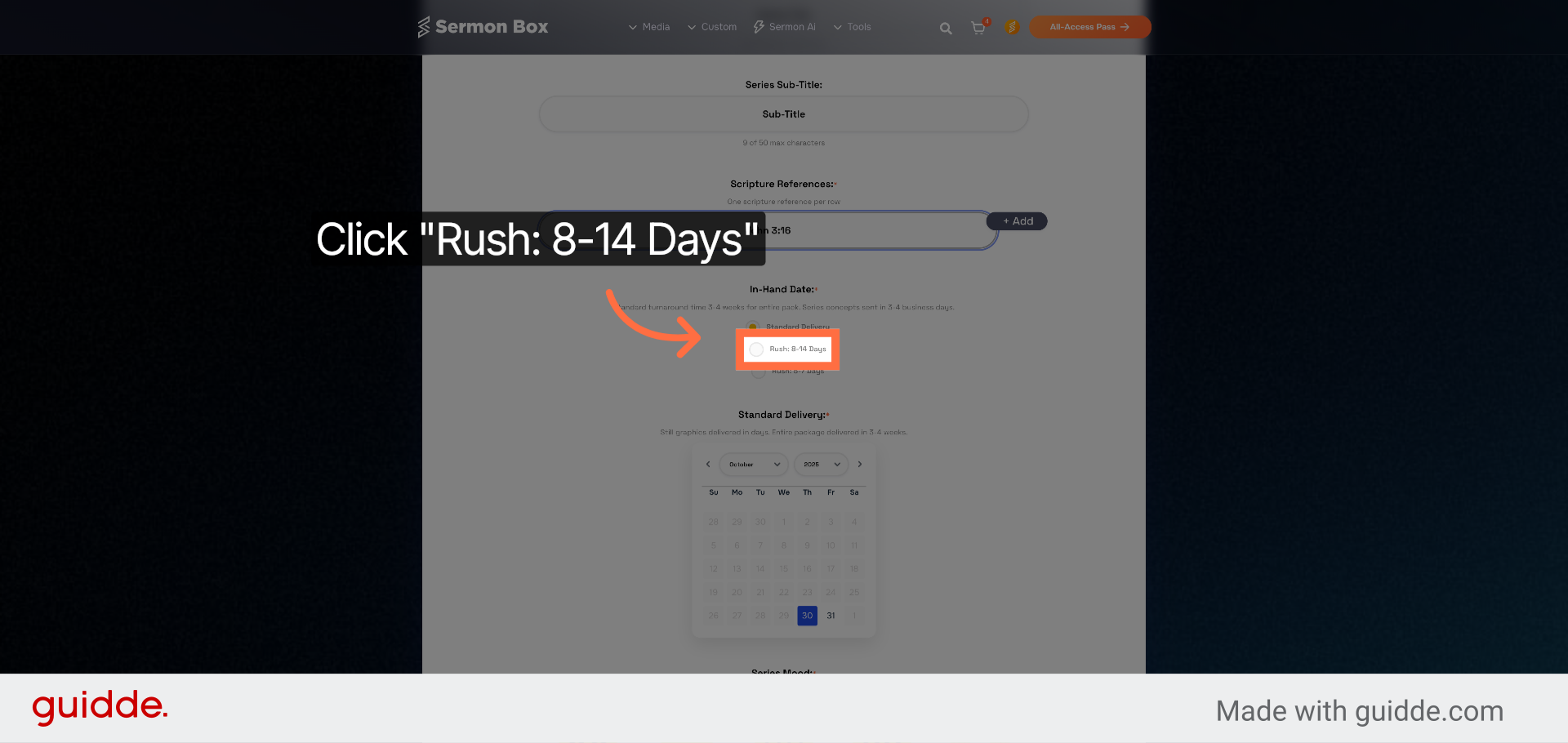
12. Select a Delivery Timeline
Choose a delivery timeline for your custom order. Active dates for you selected time frame will be highlighted. Unavailable dates will be greyed out.
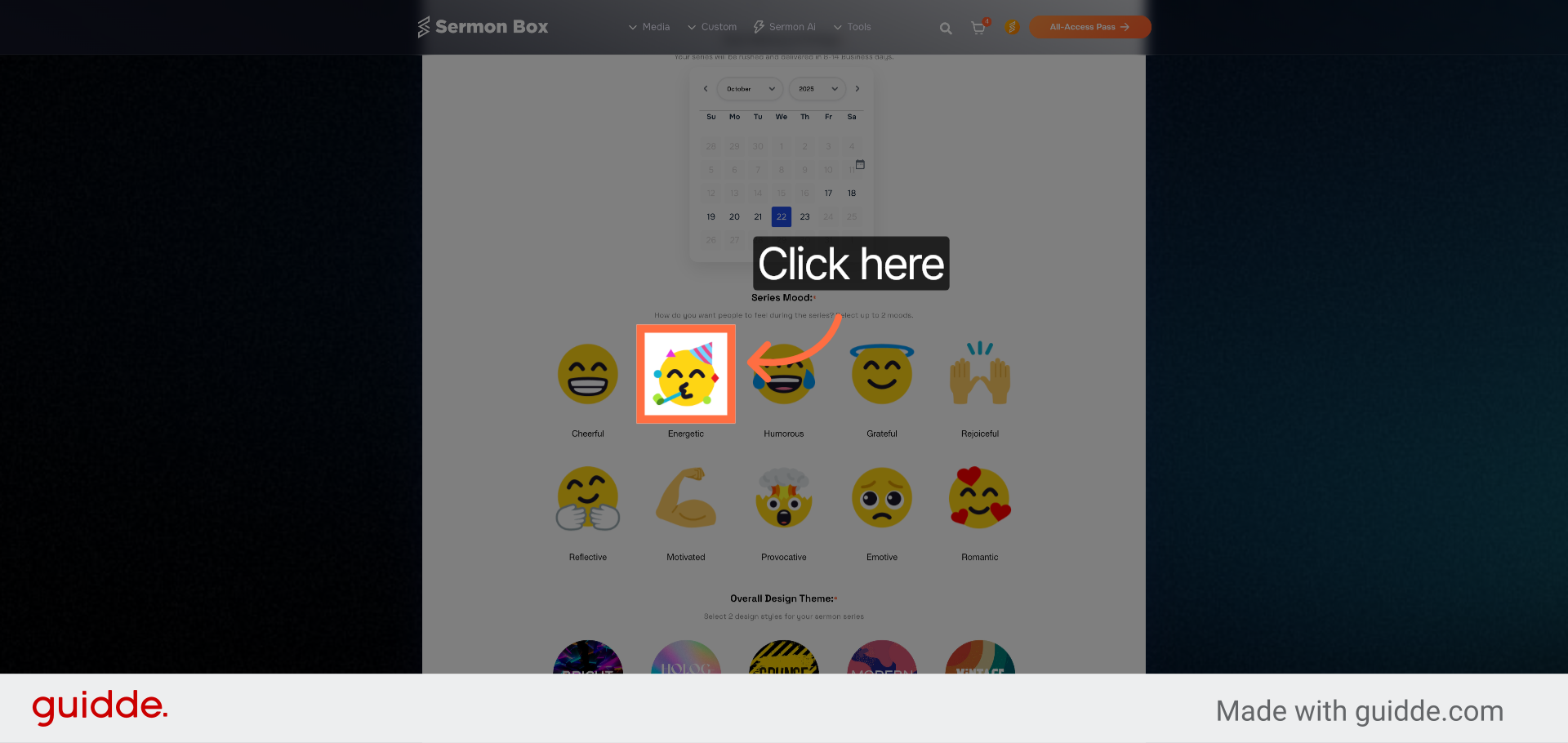
13. Choose Series Moods
Choose upto 2 moods for your series. This will primarily guide the design process and soundtrack selection
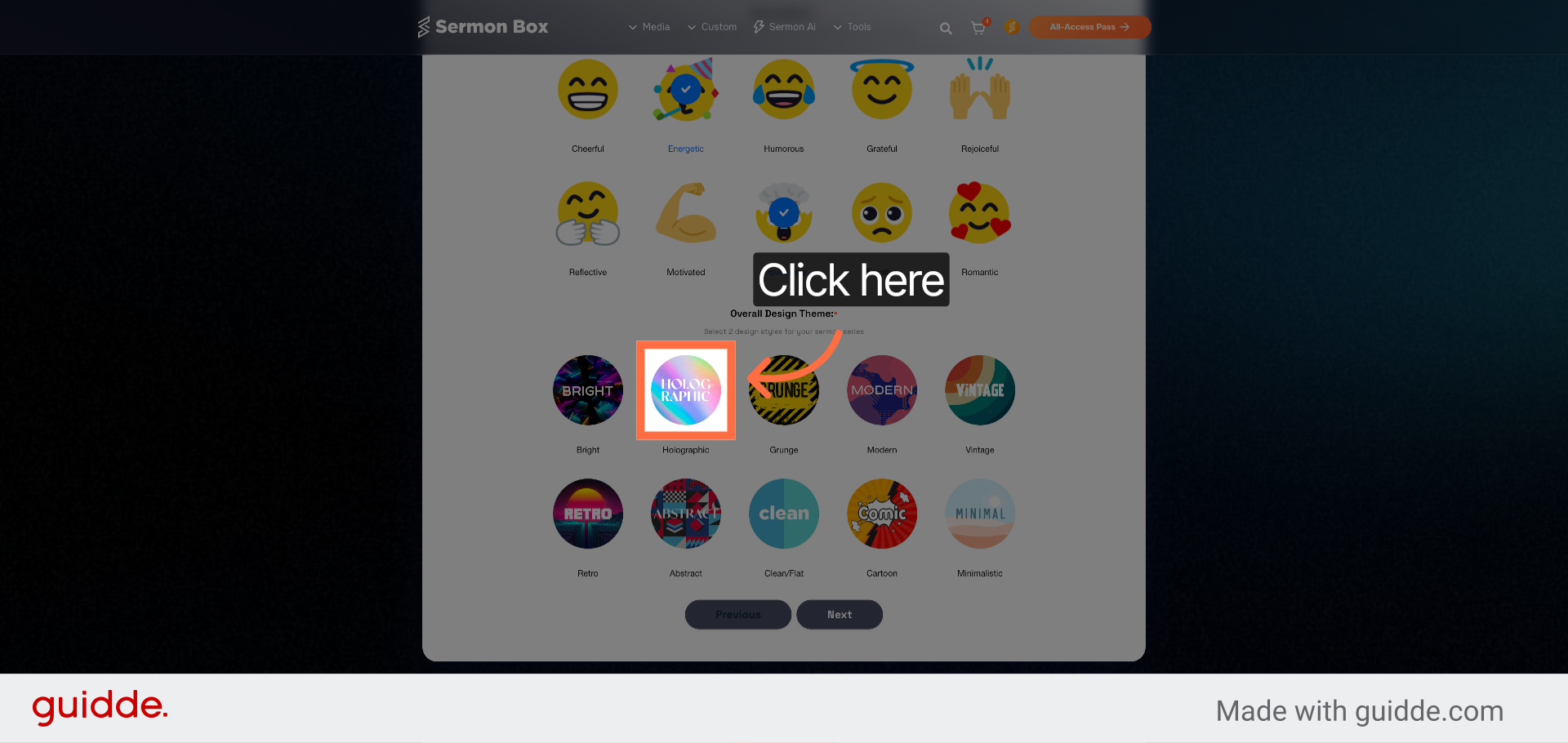
14. Navigate to Design Style
Choose upto 2 design styles for your custom series. This will guide the designers in how the series branding will feel.
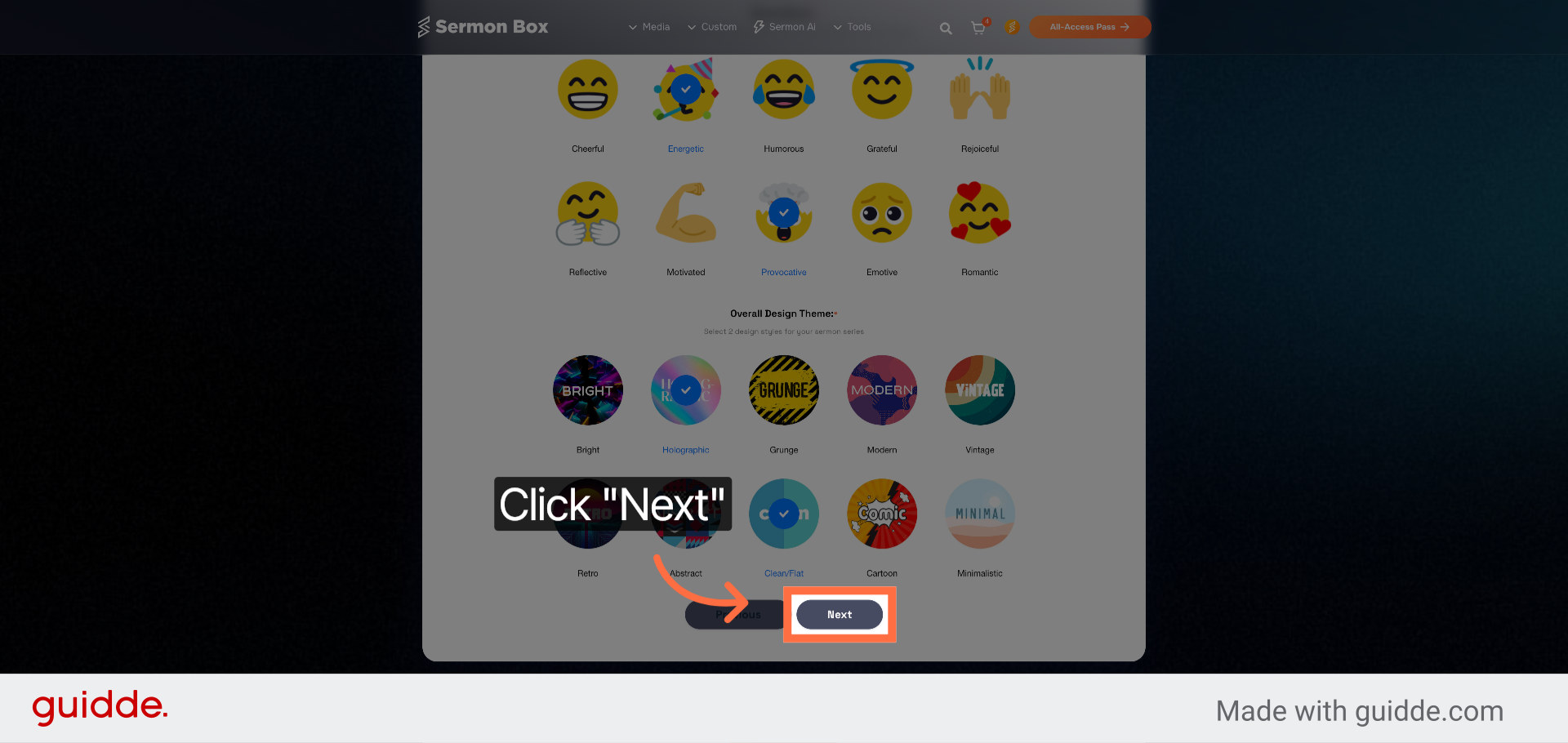
15. Proceed to Next Section
Click "Next" to move forward to the next step in the order process.
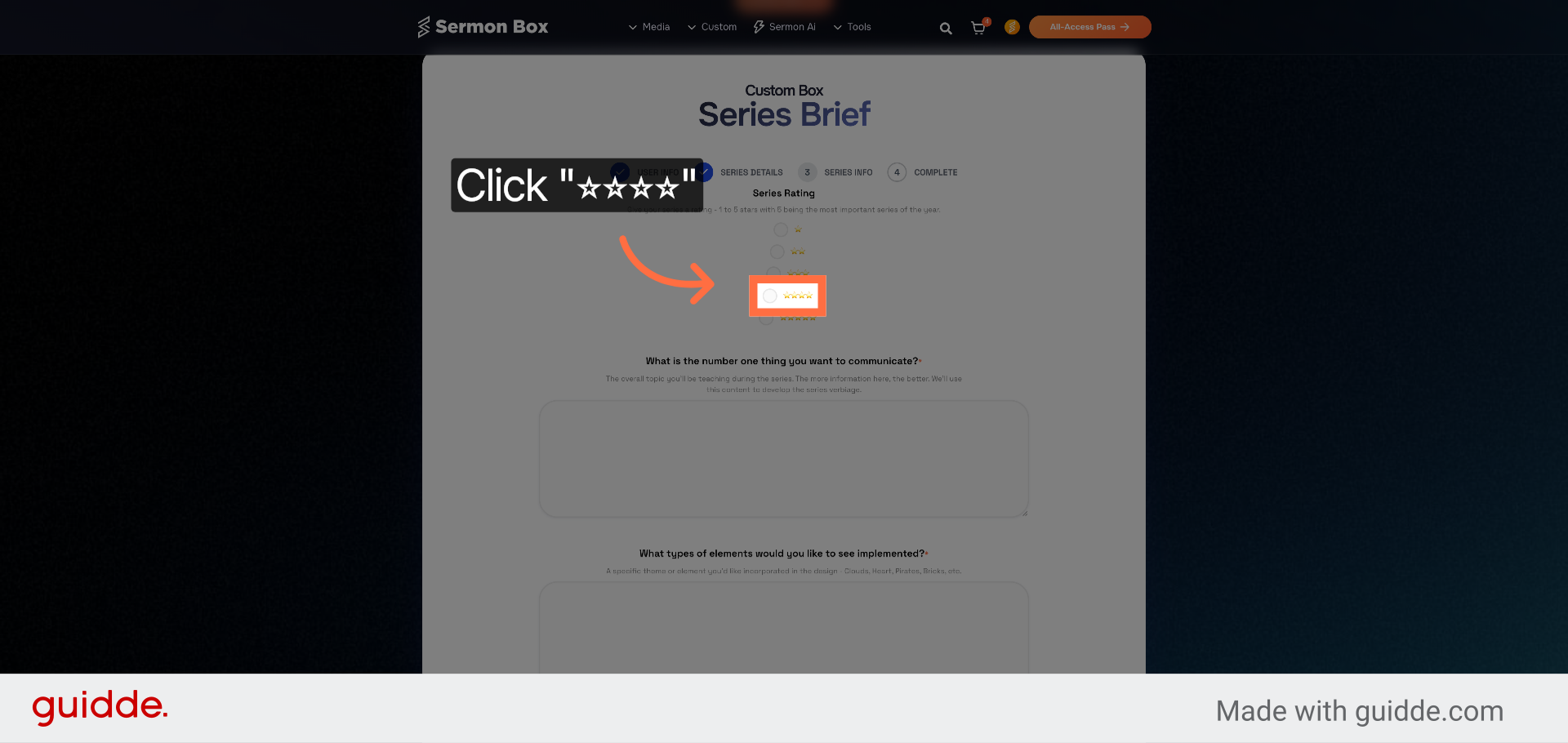
16. Select Rating
Choose a series rating between 1 and 5 stars. 1 star for a typical off weekend. 5 Stars being the biggest series of the year.
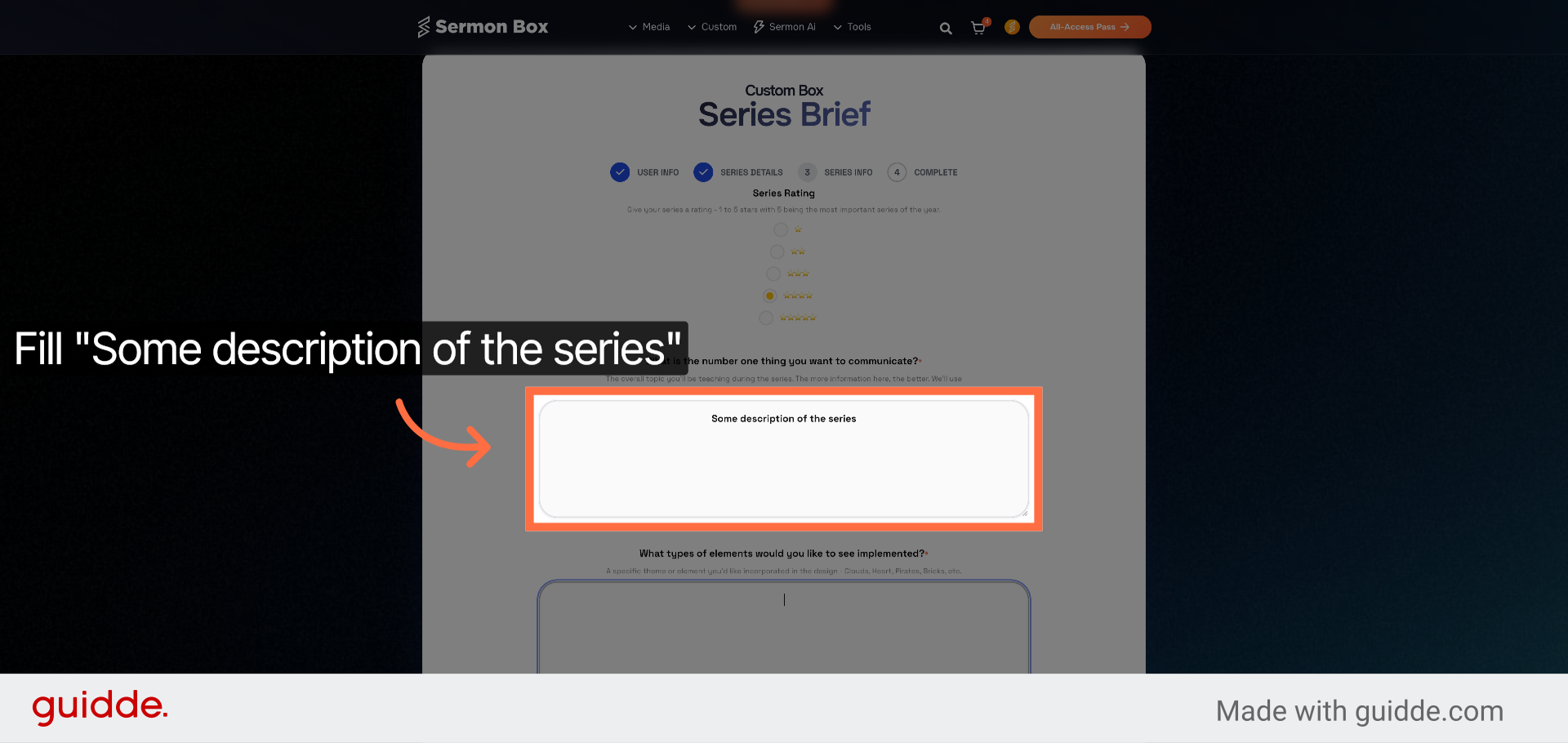
17. Enter Series Description
Fill in the description field with some description of the series to provide context. Include information on teachings or series direction.
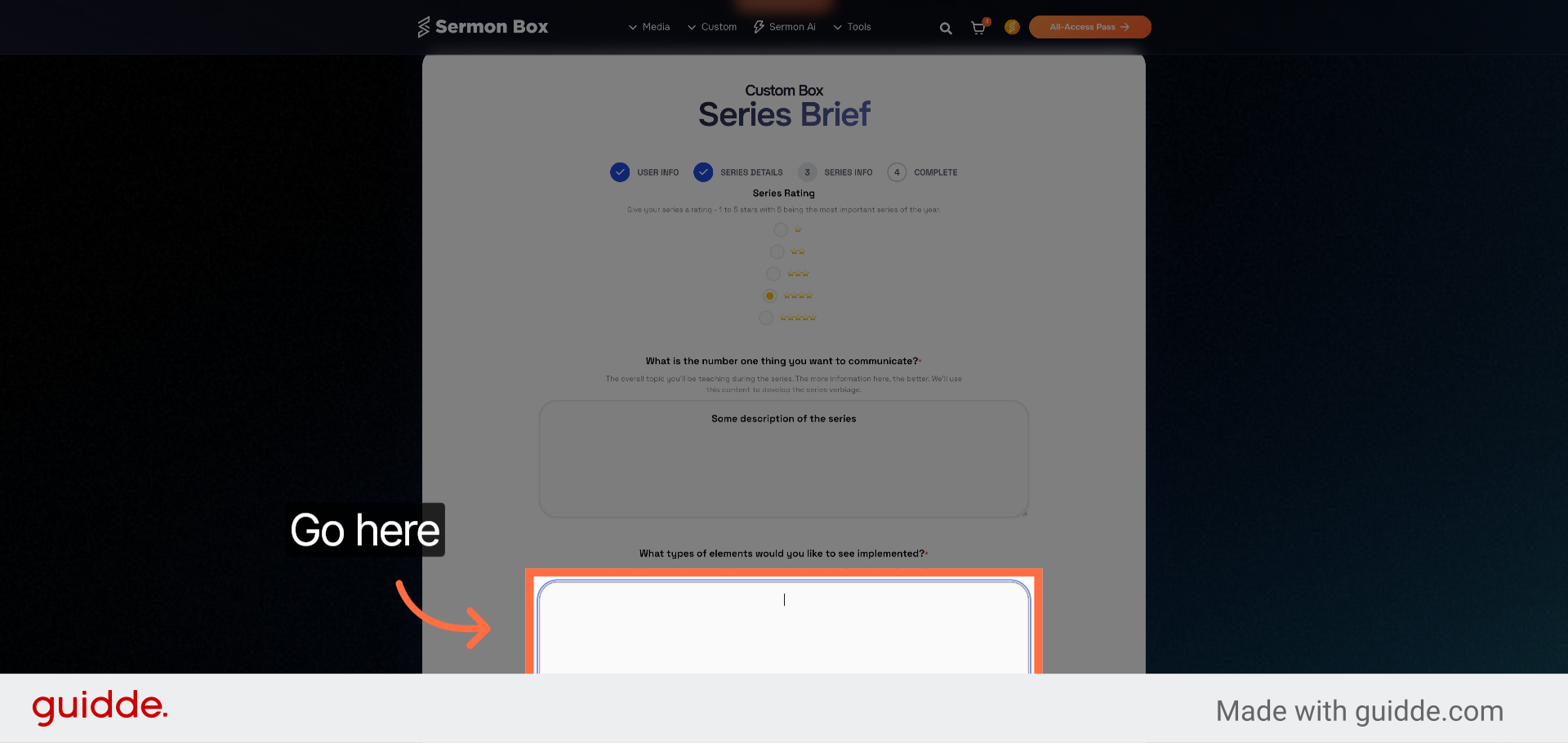
18. Enter Design Requests
Go here to add specific design requests and elements for your sermon series. Include potential ideas or titles you'd like to include in the bumper video.
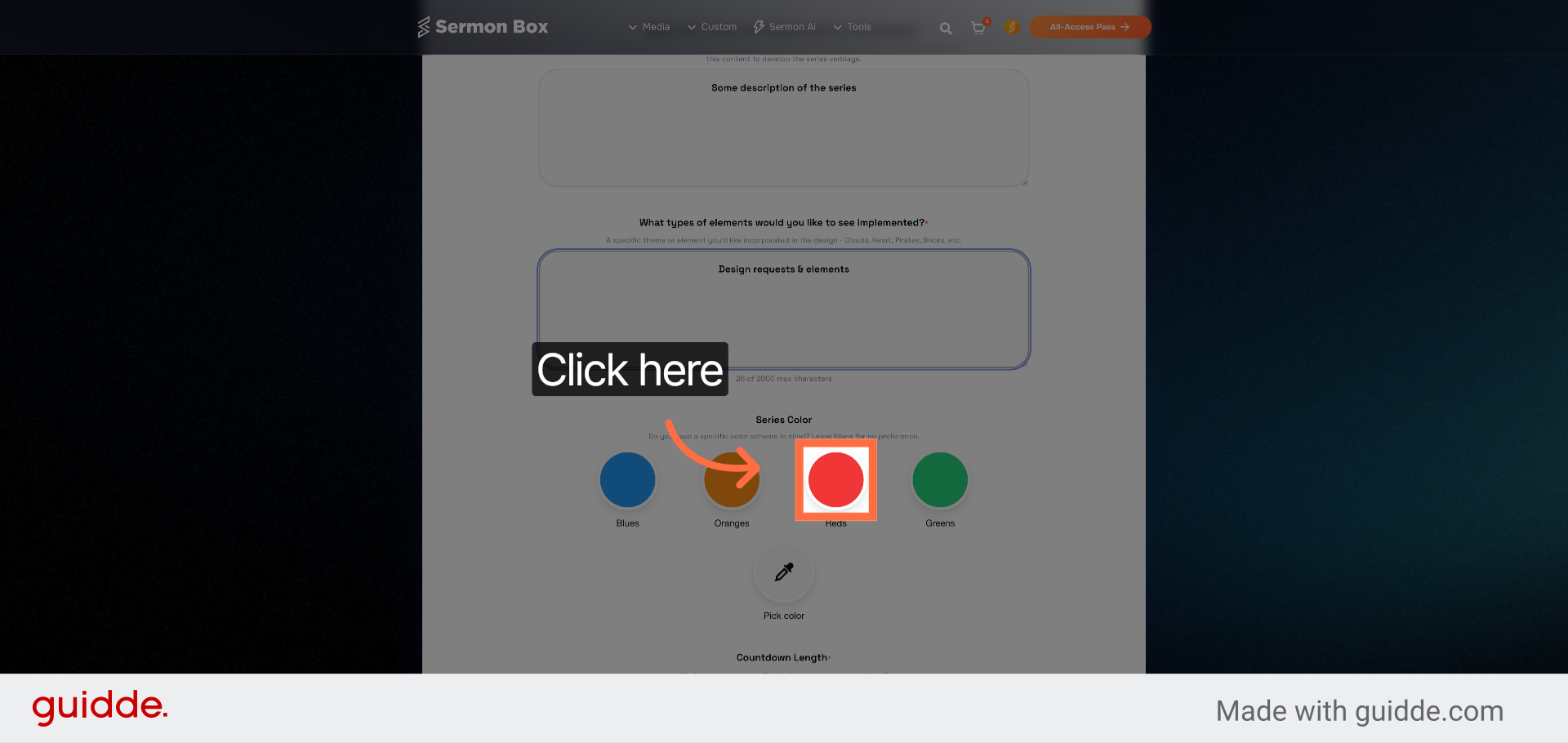
19. Choose a Series Color
If you have a specific color you'd like to use in the series branding, select from the presets or color picker for a custom color. If you don't have a specific preference, feel free to leave this option blank.
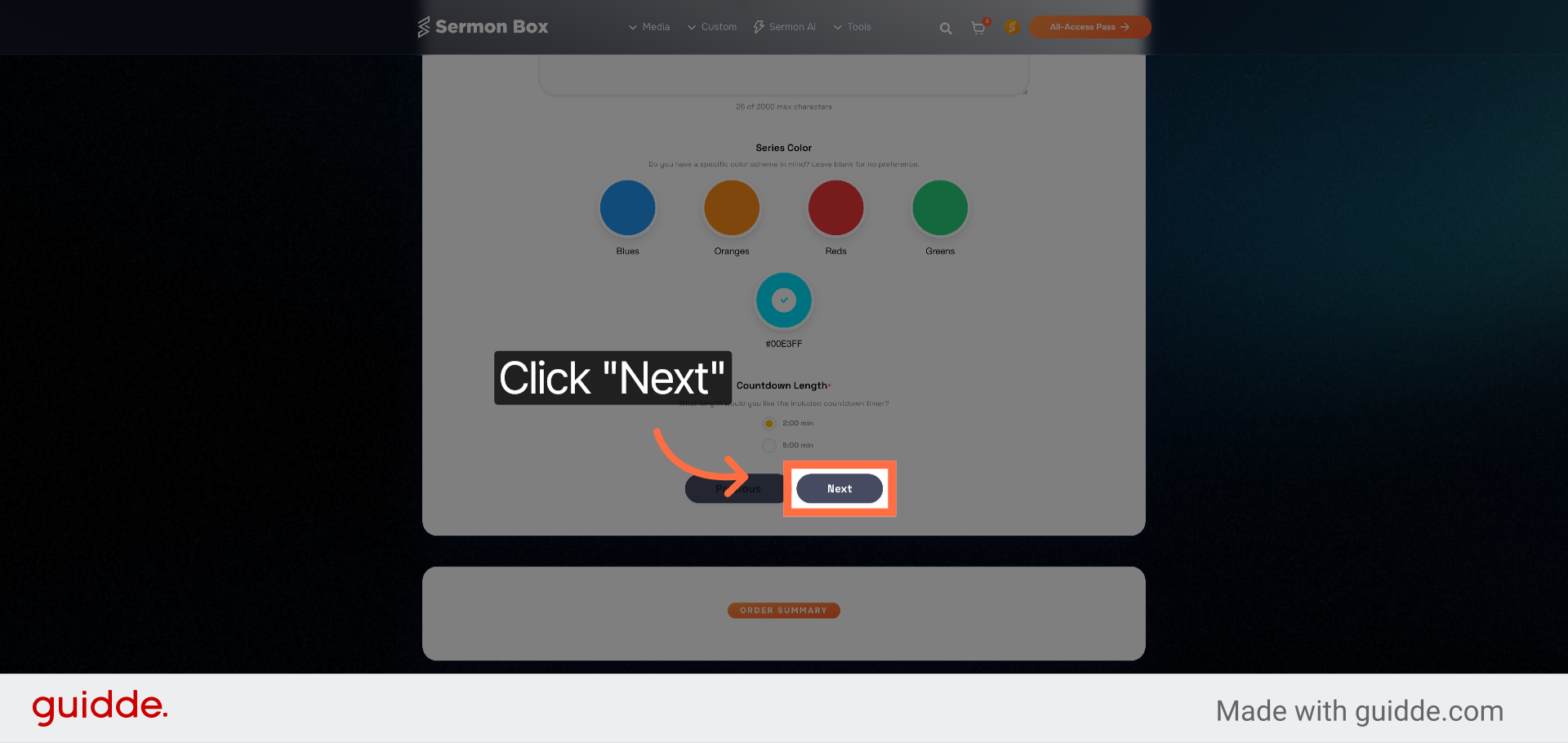
20. Proceed to Final Step
Click "Next" to advance to the final review and submission stage.
21. Submit Order
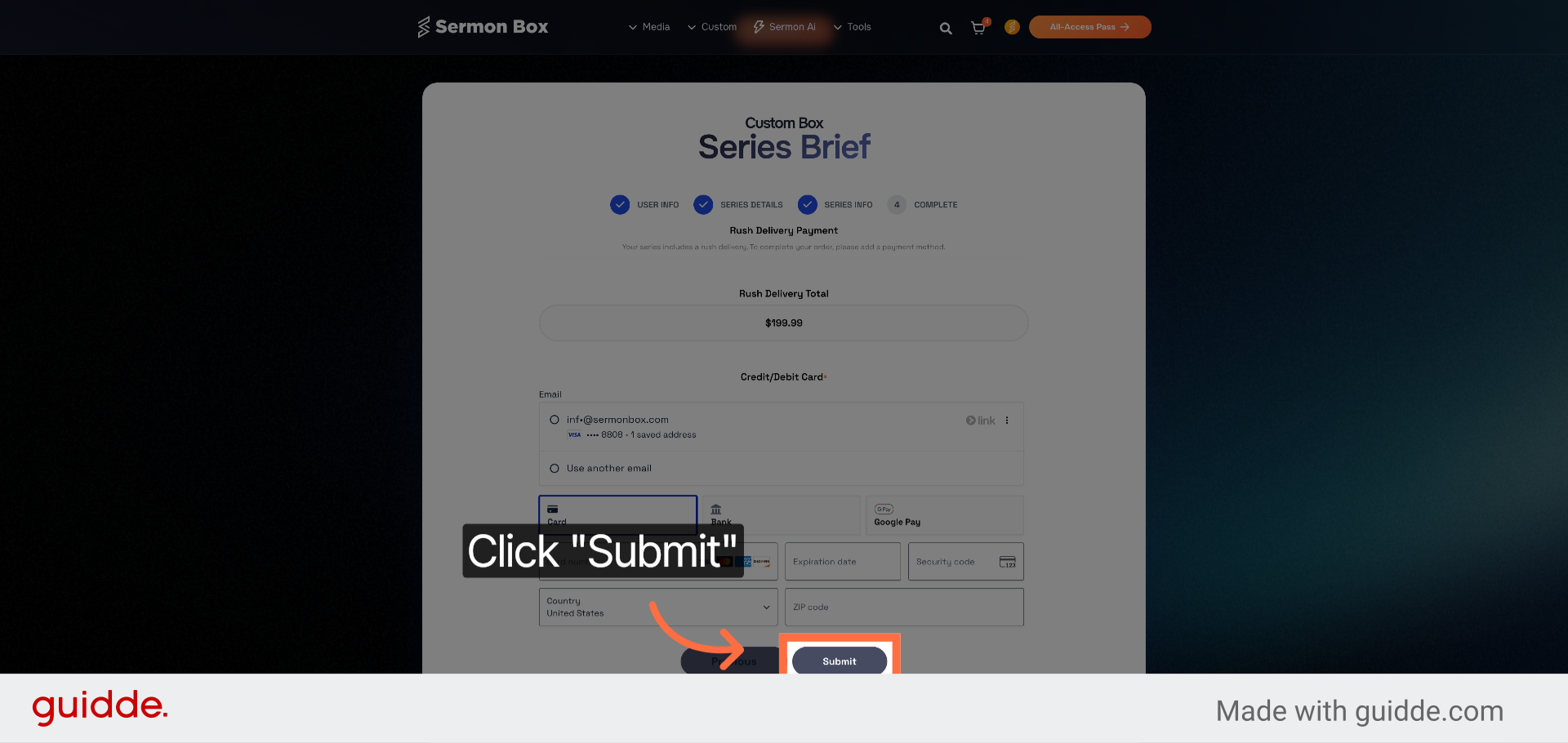
Click "Submit" to complete and send your custom sermon series order details. If you're package requires an additional rush fee, you can enter your payment details to submit your finalized order for processing.
You have successfully submitted your custom sermon series order. Review your confirmation details and await delivery within the selected timeframe. For further customization or additional orders, revisit the Sermonbox platform or contact support.
Related Articles
Access & Generate Using SermonAi
Access And Create Sermon Series Using SermonAi This tutorial guides you through accessing SermonAi in Sermonbox and creating a customized 4-week sermon series with supporting devotional content Go to sermonbox.com 1. Introduction Before starting, ...Access and Generate Sermon Notes
Access and Generate Sermon Notes in Sermonbox This tutorial guides you through accessing the Sermon Notes module in Sermonbox, enabling you to view and generate sermon notes efficiently Go to sermonbox.com 1. Introduction Before starting, ensure you ...Submit Tax Exemption Forms
Submit Tax Exemption Forms Efficiently Using Sermonbox This tutorial guides you through submitting a tax exemption form using Sermonbox Go to sermonbox.com 1. Introduction You will learn how to access the E-595E form, fill in your personal and ...Navigate and Manage Account Area Features in Sermonbox
Navigate and Manage Account Area Features in Sermonbox This tutorial guides you through navigating the Account Area in Sermonbox, enabling you to manage your orders, subscriptions, personal details, and payment methods efficiently Go to sermonbox.com ...Download All-Access Packs Efficiently in Sermonbox
Download All-Access Packs Efficiently in Sermonbox This tutorial guides you through downloading all-access packs in Sermonbox Go to sermonbox.com 1. Introduction Before starting, ensure you have an active account and access to the Sermonbox platform. ...