Navigate and Manage Account Area Features in Sermonbox
Navigate and Manage Account Area Features in Sermonbox
This tutorial guides you through navigating the Account Area in Sermonbox, enabling you to manage your orders, subscriptions, personal details, and payment methods efficiently
Go to sermonbox.com
1. Introduction
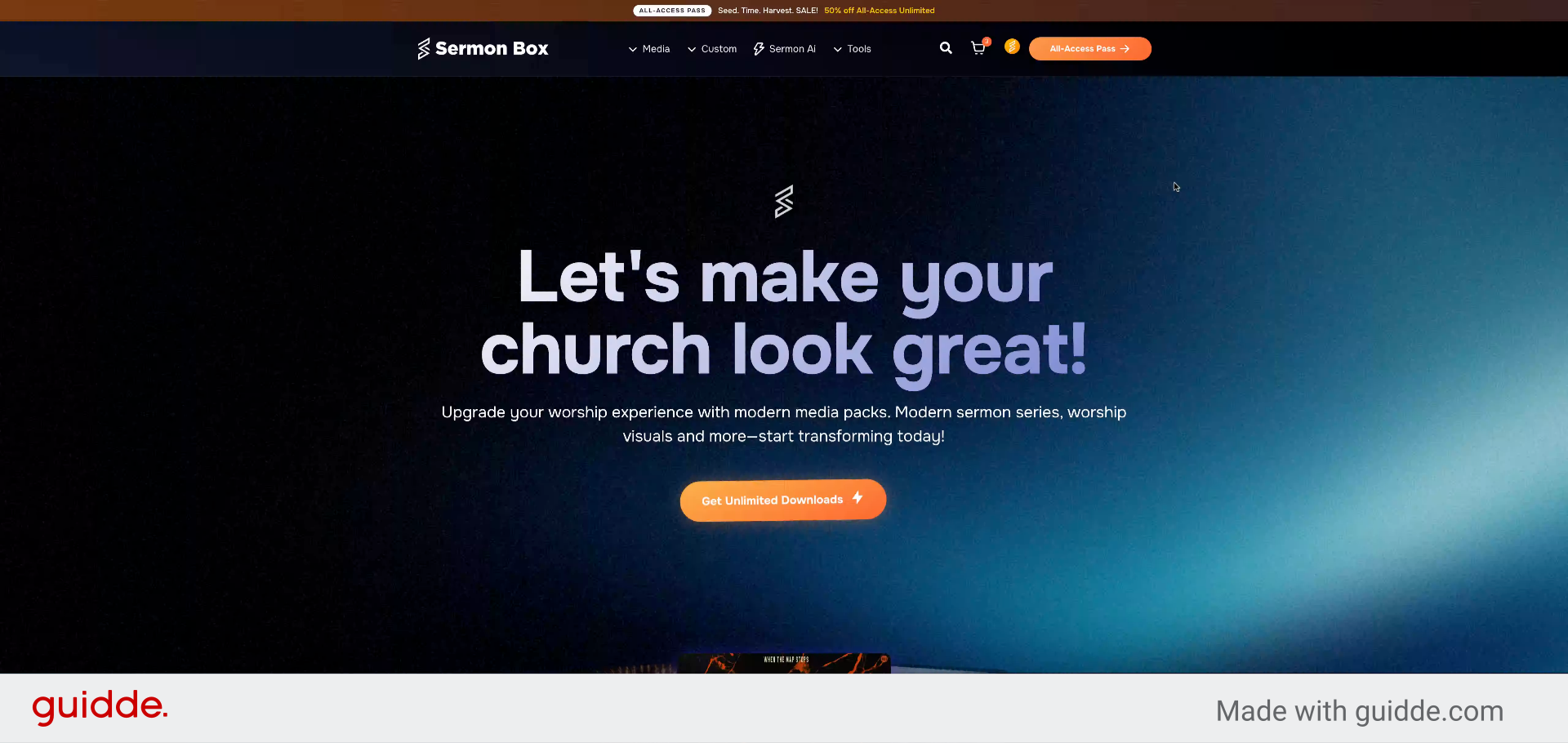
Once logged in, hover over the user icon for quick access to the account area.
2. Select My Account
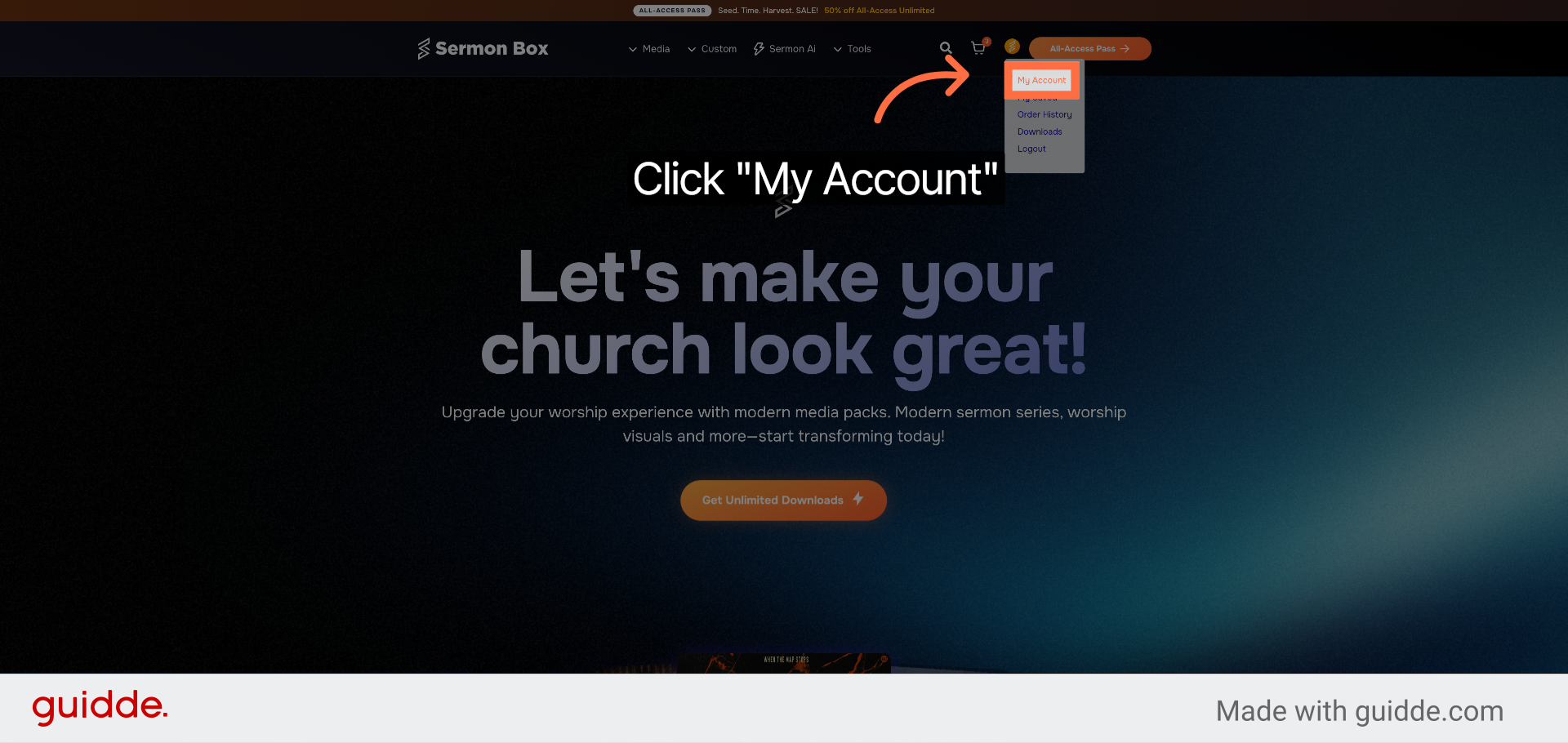
Click "My Account" to view and manage your personal account settings.
3. Access Dashboard
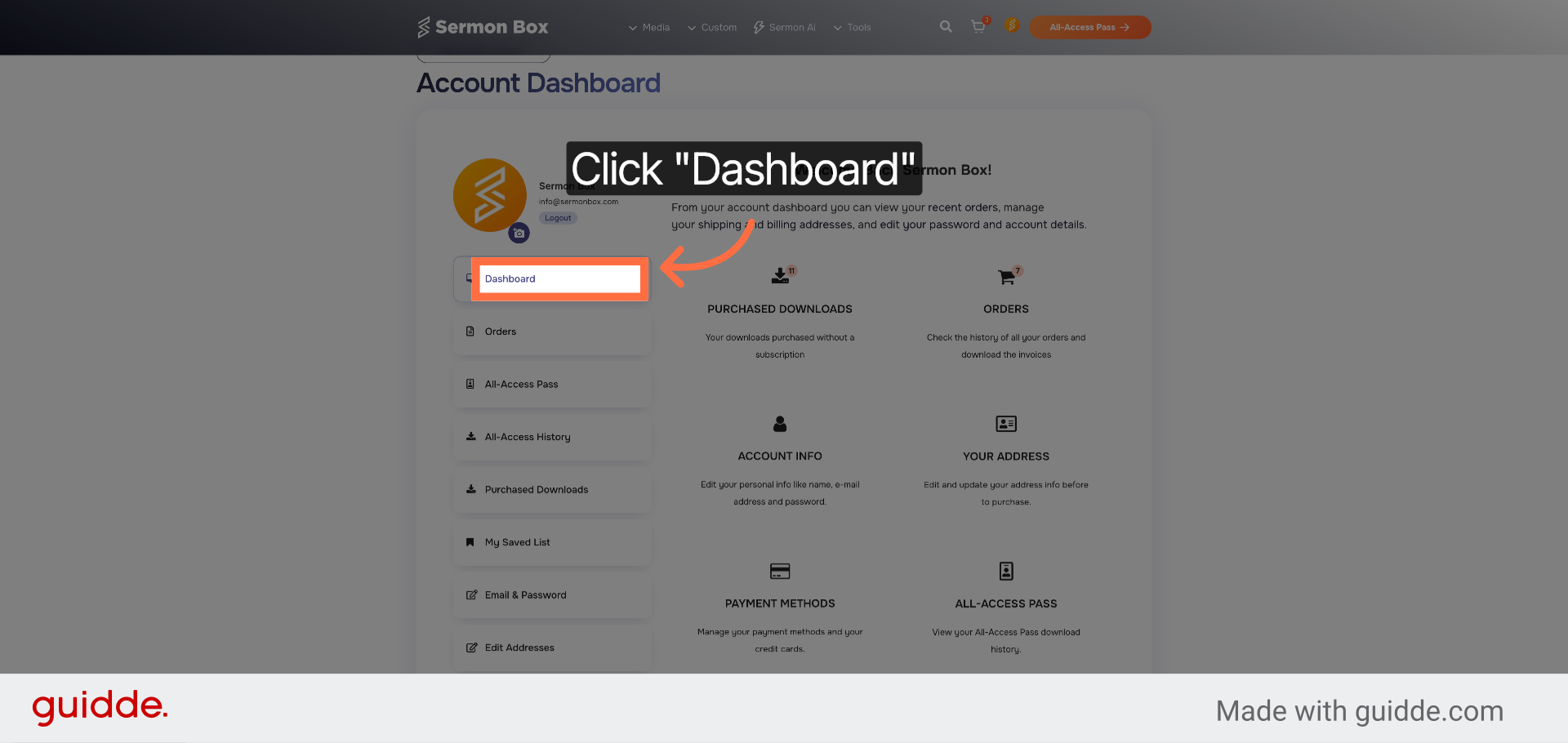
Your dashboard gives you quick access to the most pertinent information.
4. Navigate to Orders
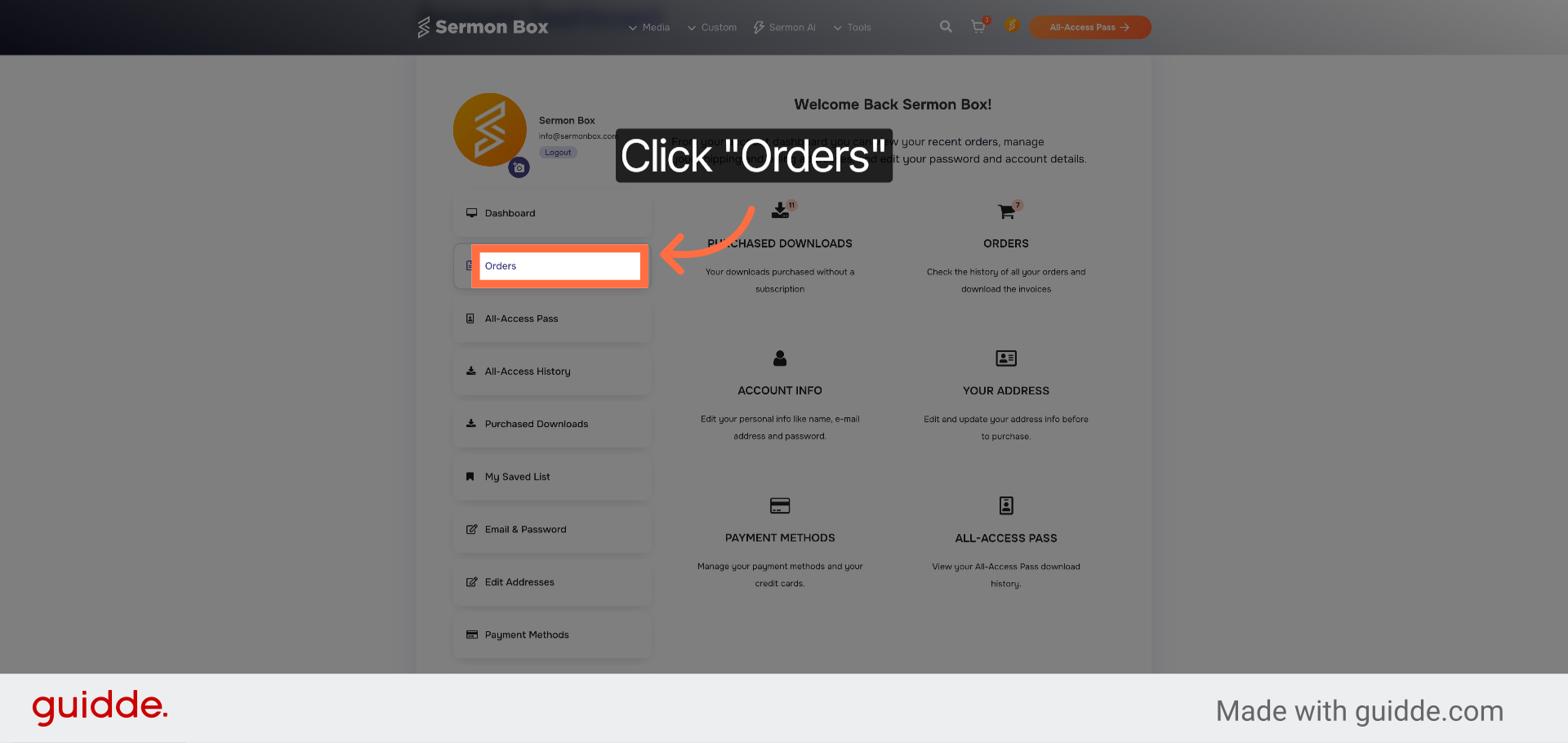
Click "Orders" to review your purchase history and order details.
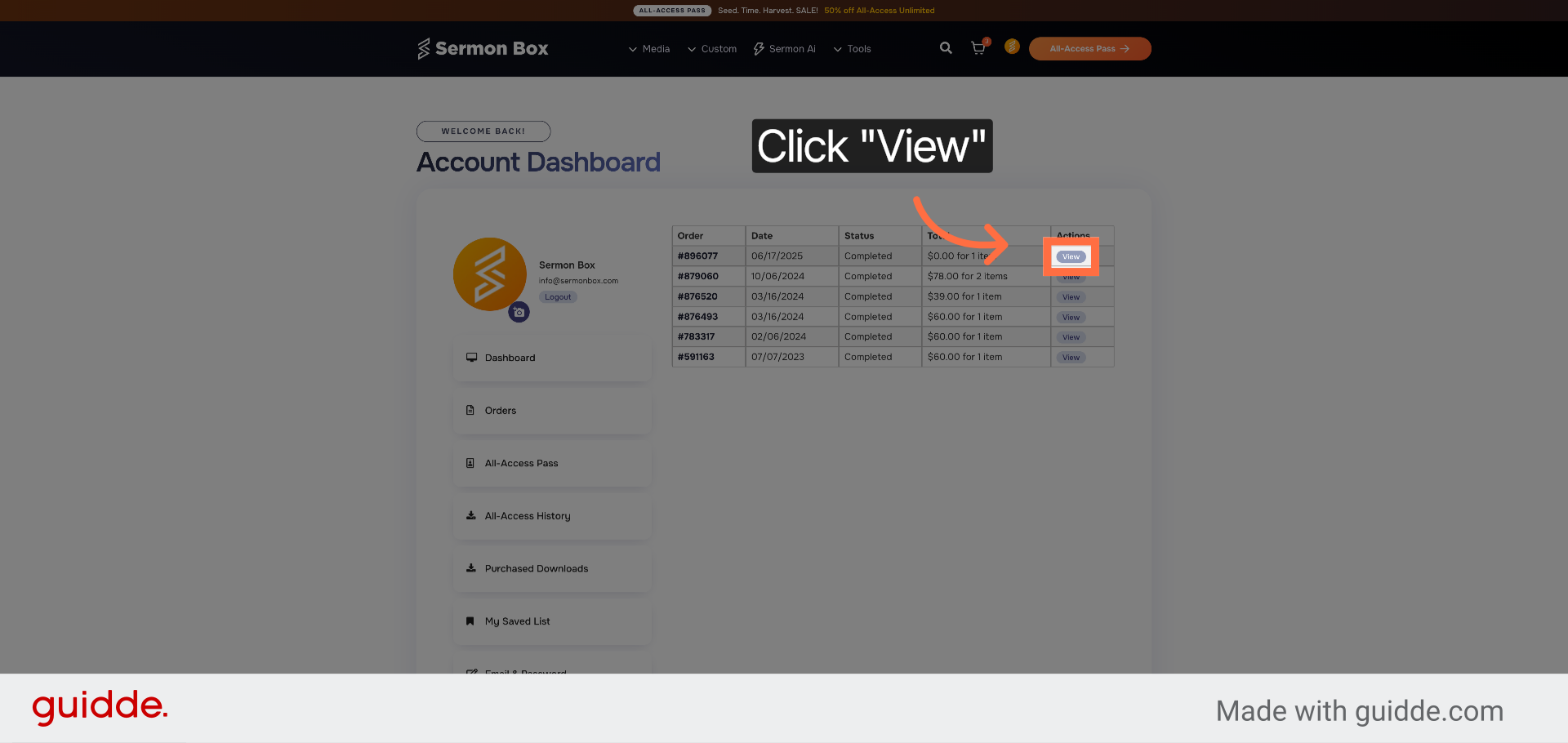
5. View Specific Order
Click "View" to open the details of a selected order for more information.
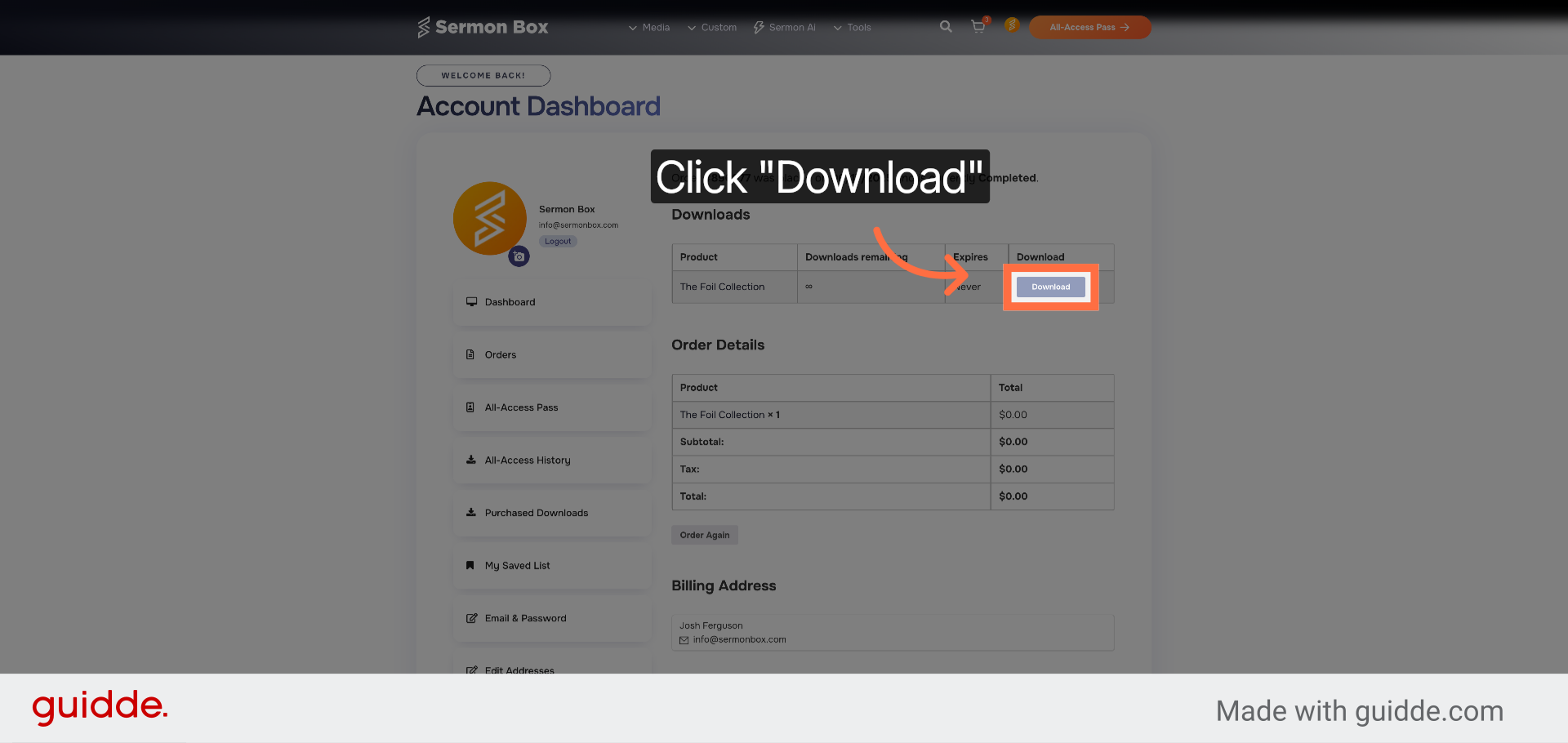
6. Download Order Files
Click "Download" to save the files associated with your order to your device.
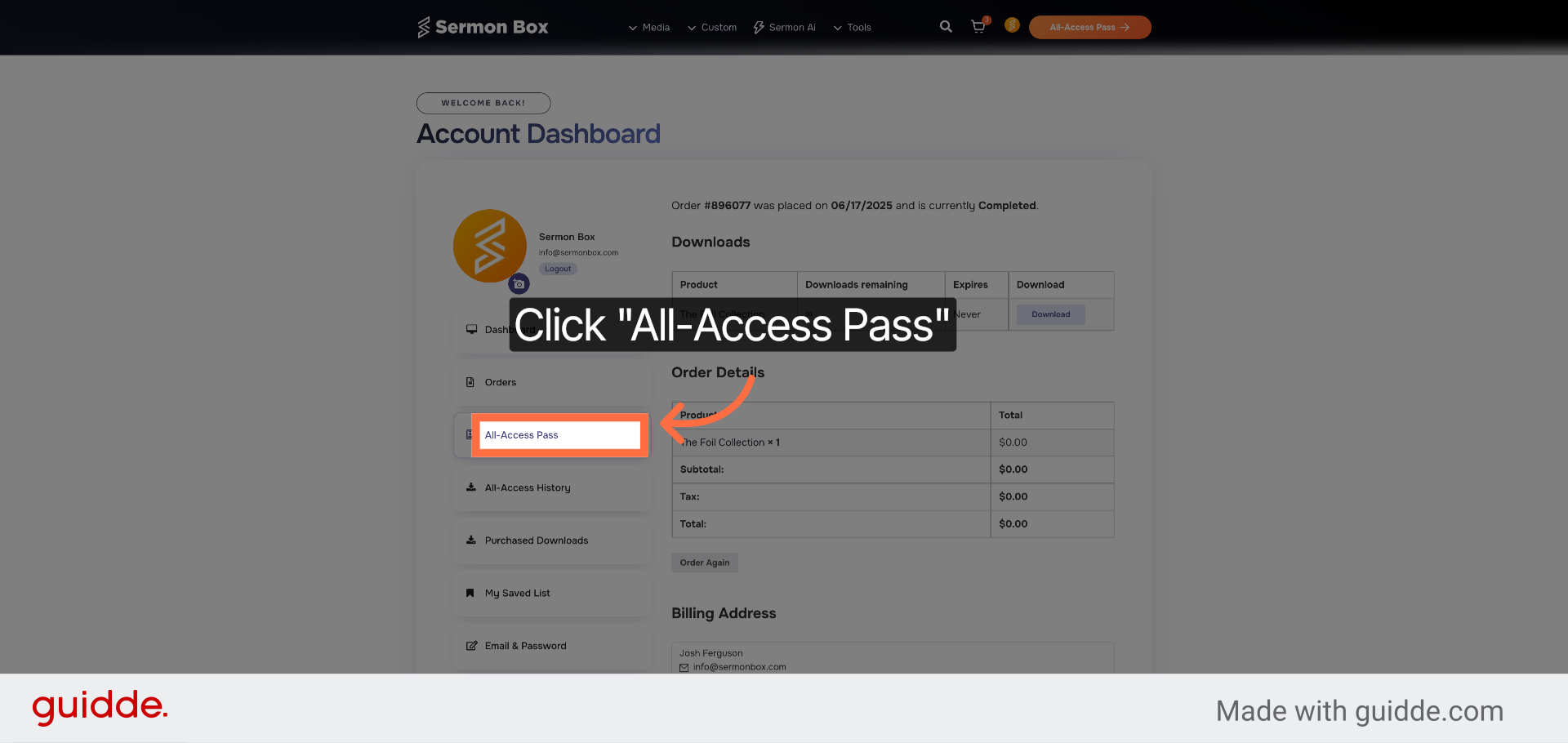
7. Open All-Access Pass
Click "All-Access Pass" to manage your subscription and access privileges.
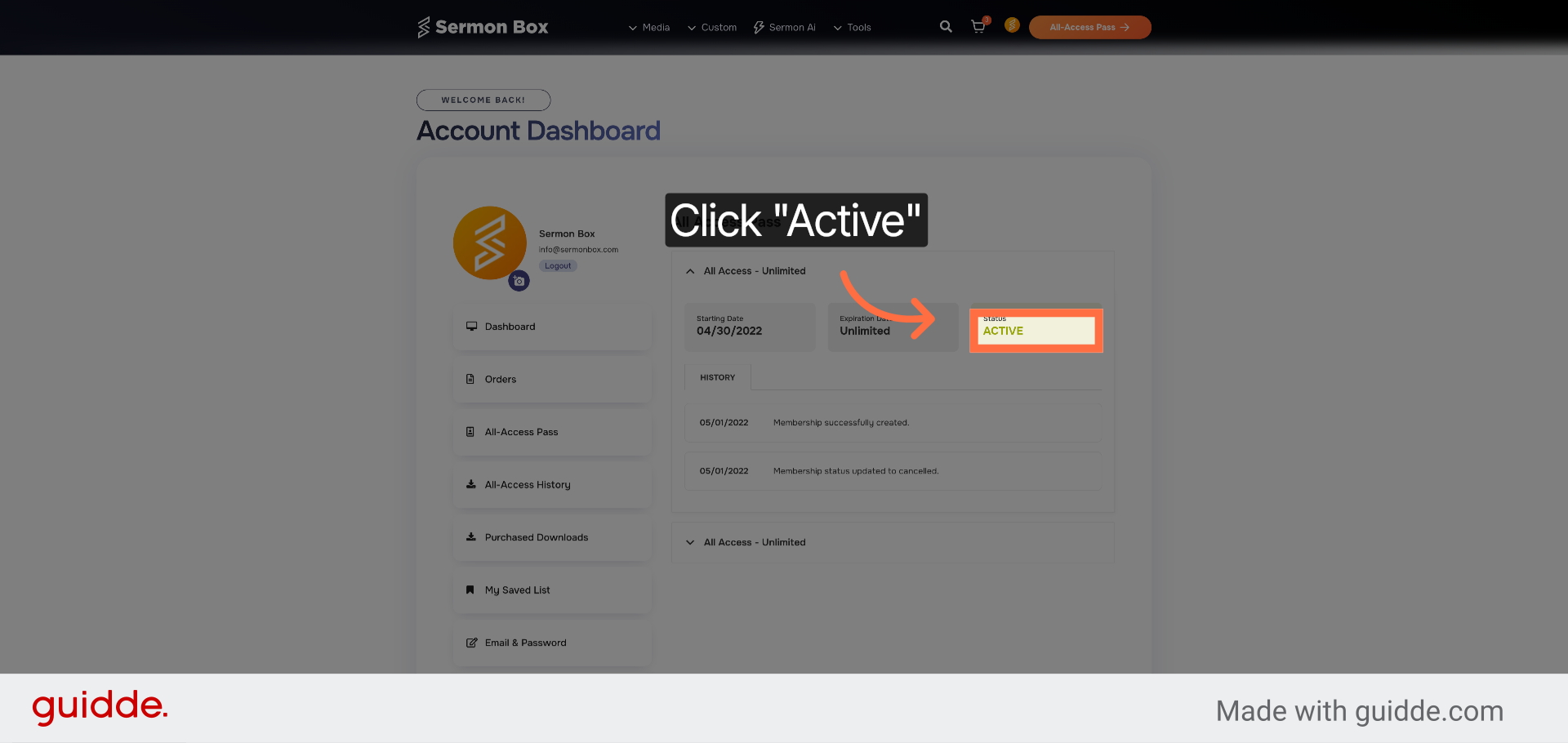
8. Active Passes
Membership status will display under each of your purchased memberships.
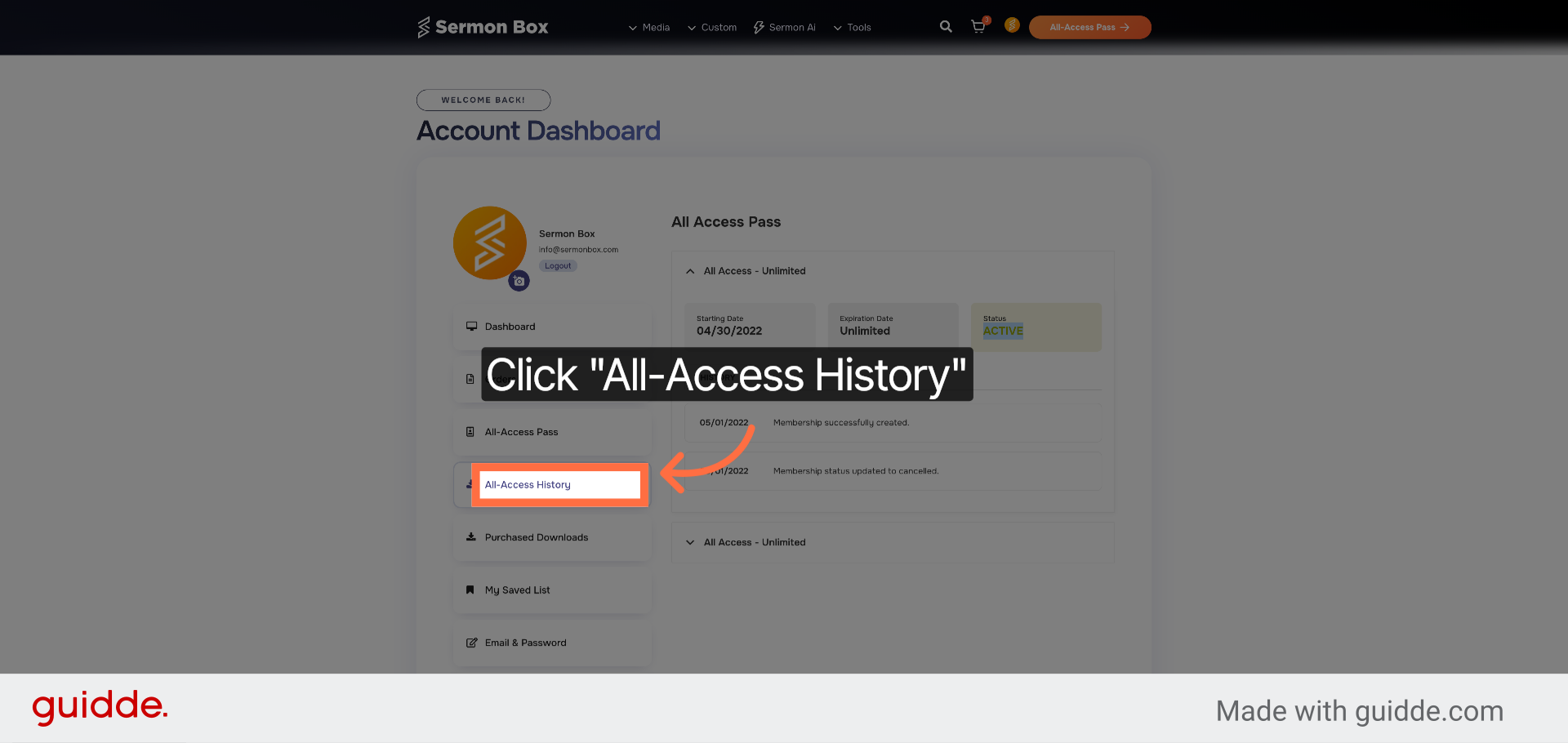
9. View All-Access History
Click "All-Access History" to review past subscriptions and access records.
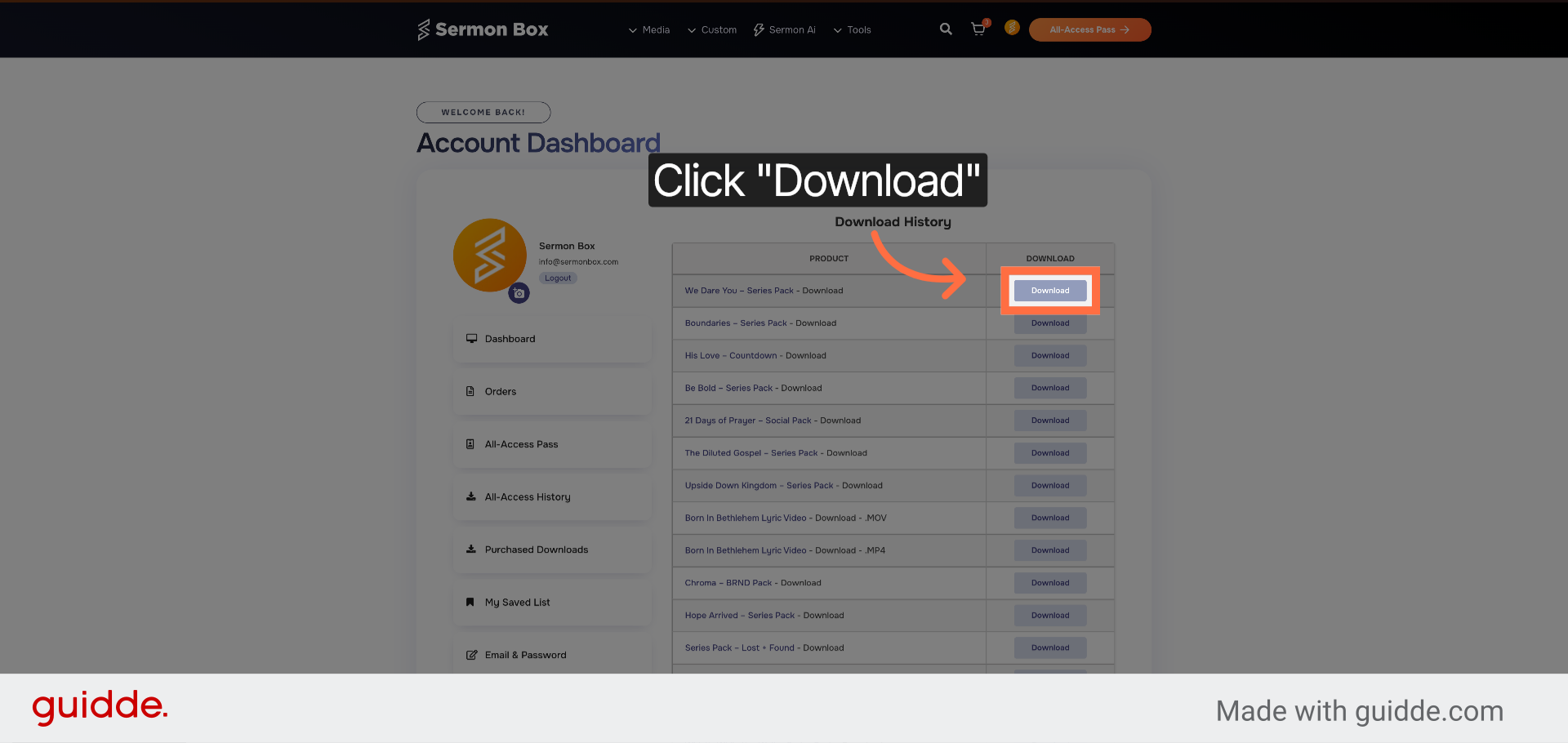
10. Download Historical Files
View and retrieve files from your all-access history for use.
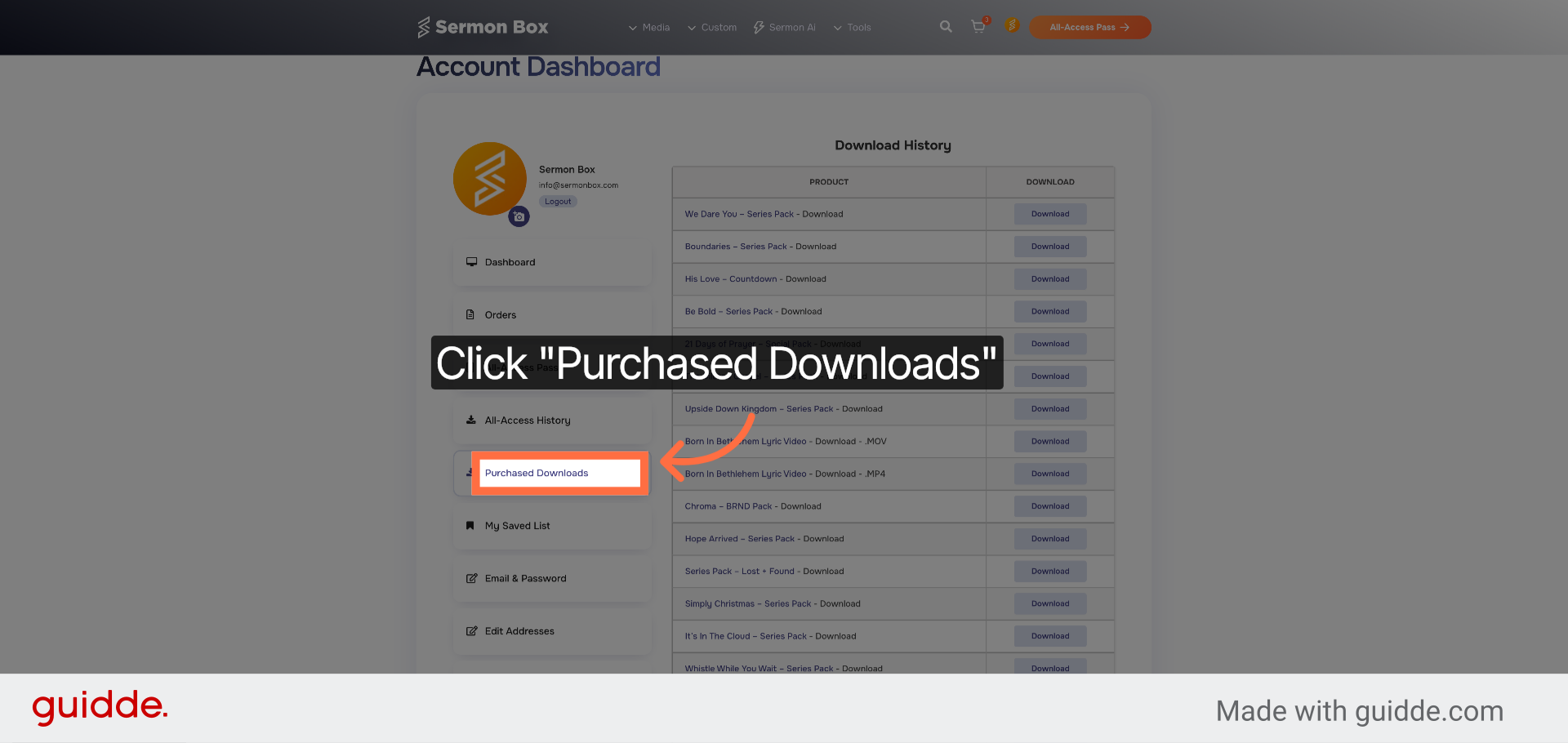
11. Open Purchased Downloads
Click "Purchased Downloads" to access all files you have bought previously.
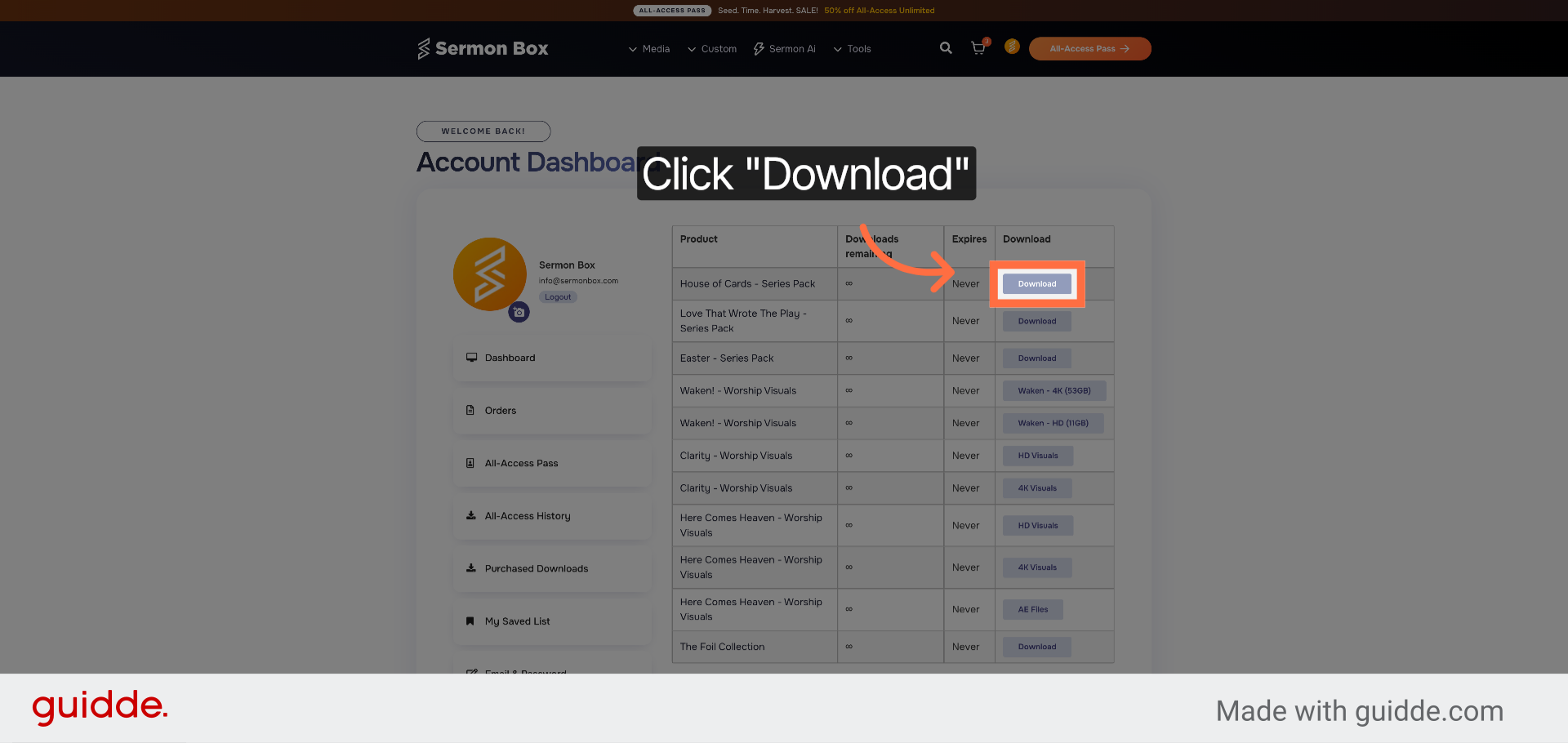
12. Download Purchased Files
Click "Download" to save your purchased files to your device for easy access.
13. Access Saved List
Click "My Saved List" to view items you have bookmarked or saved for later.
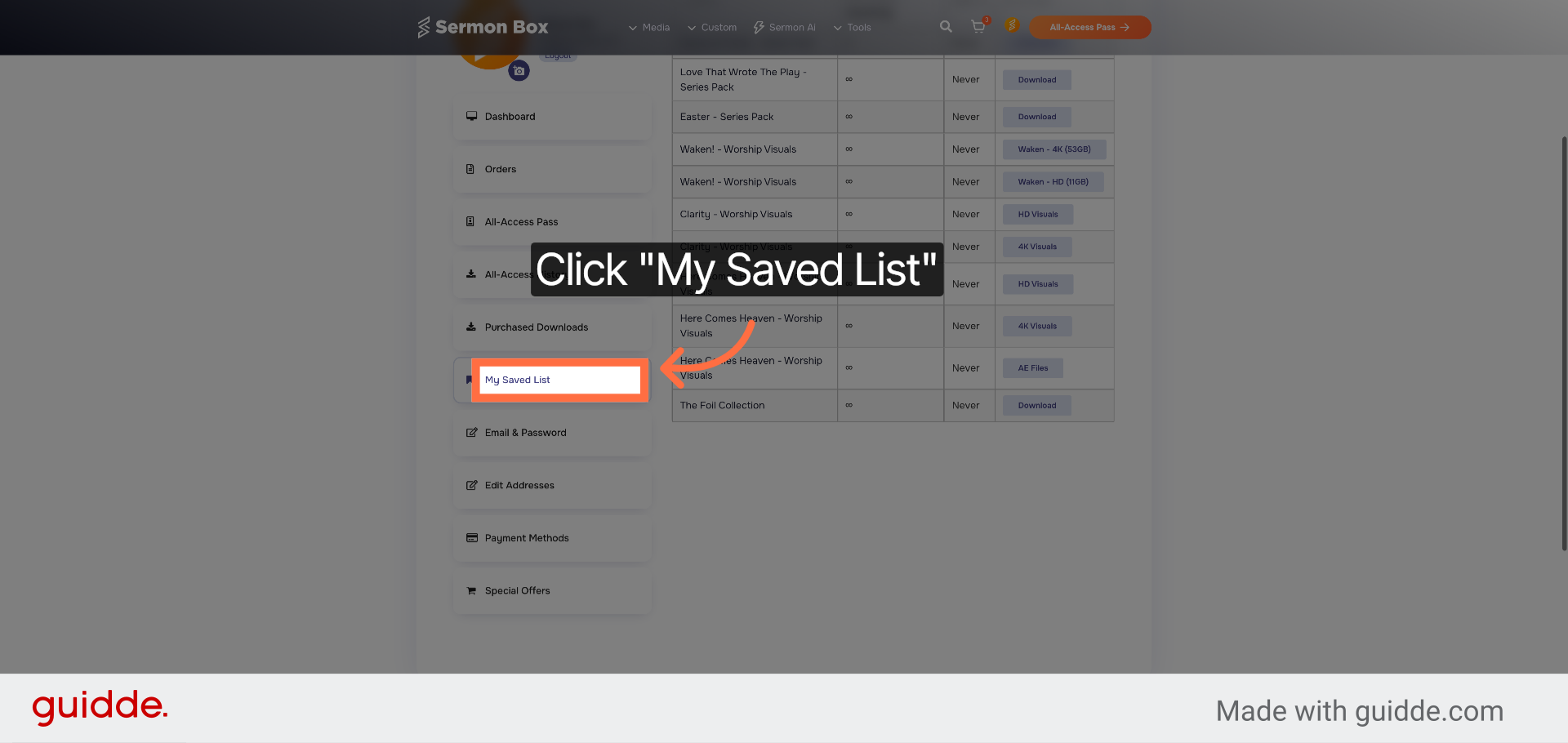
14. Manage Email & Password
Click "Email & Password" to update your login credentials and contact information.
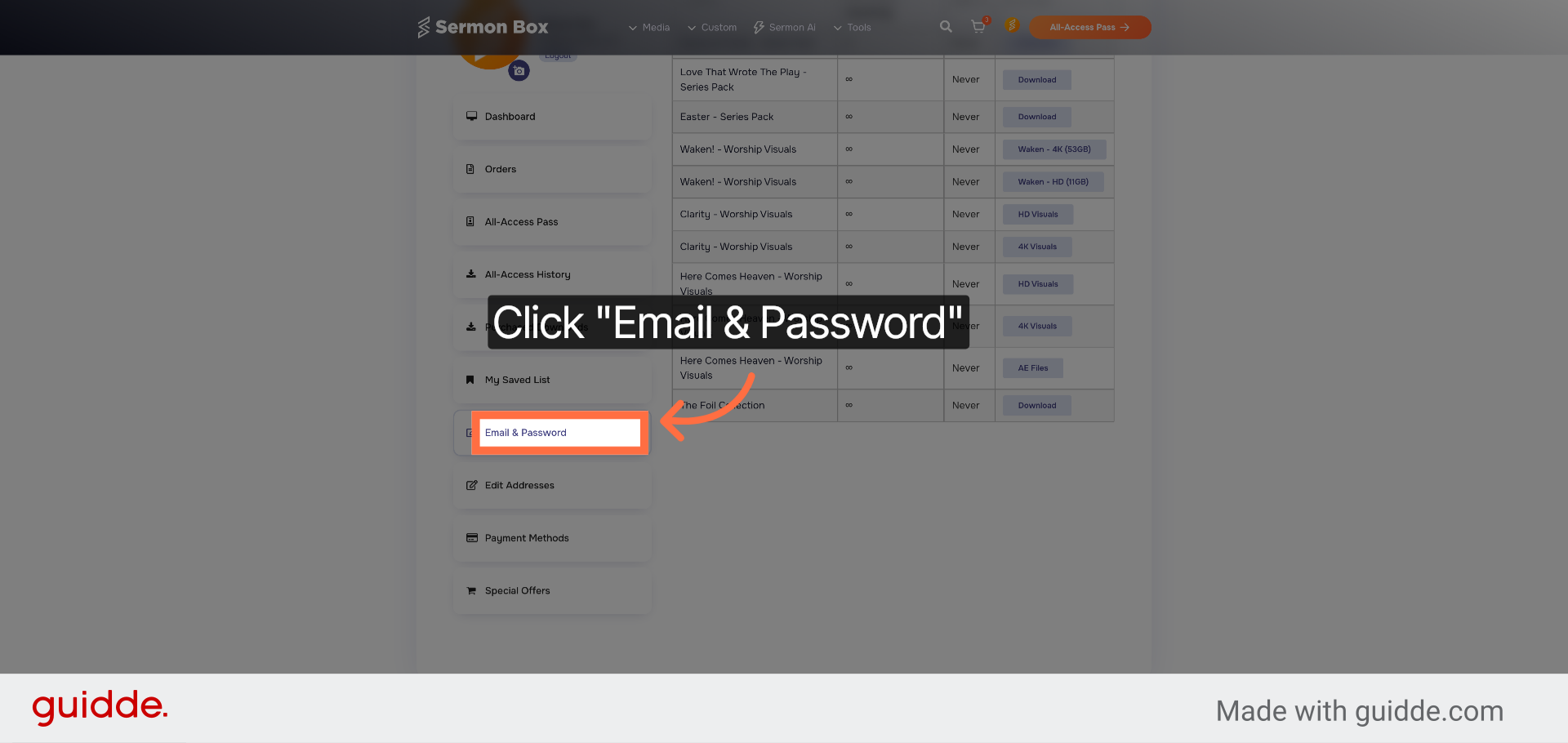
15. Edit Address Information
Click "Edit Addresses" to modify your saved shipping and billing addresses.
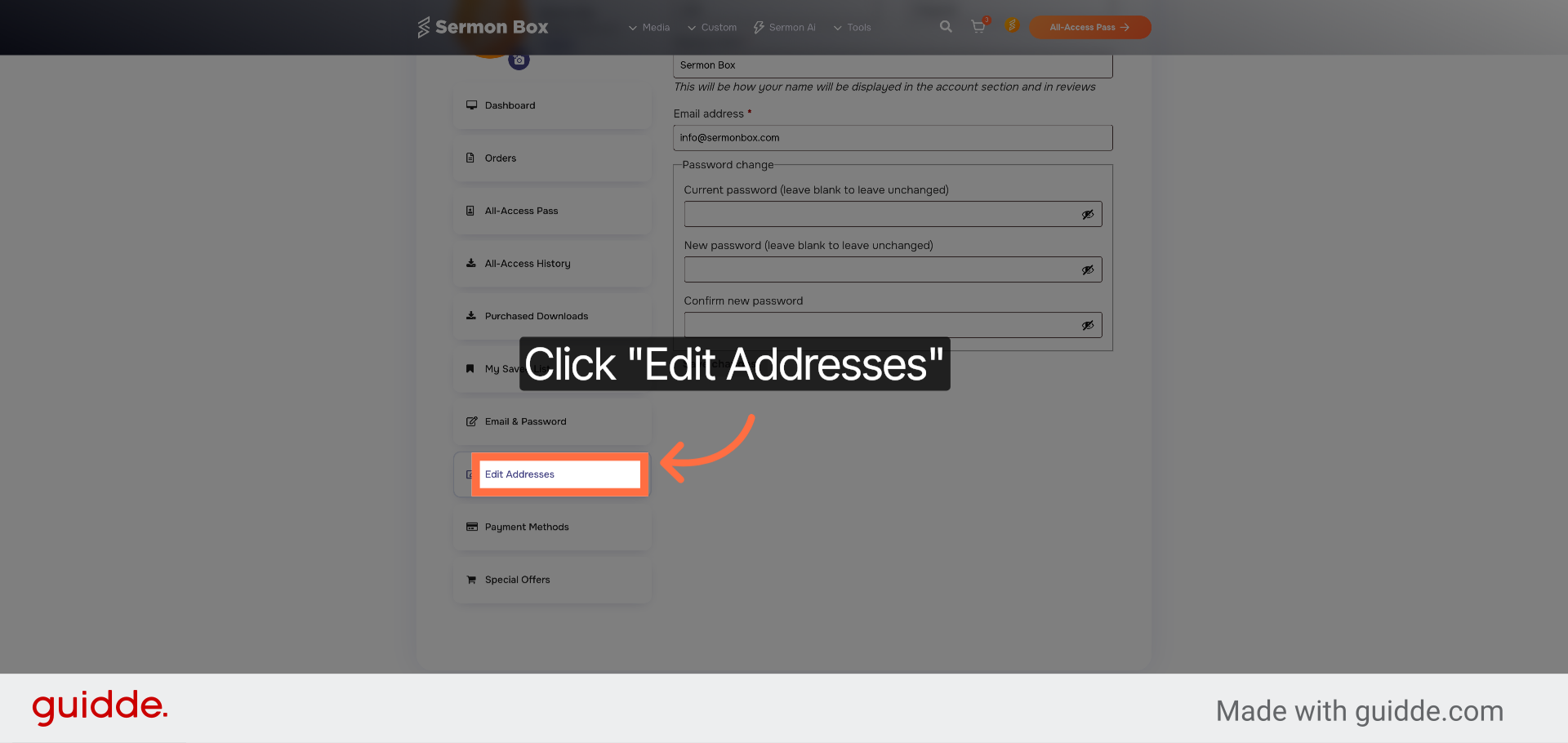
16. Update Payment Methods
Click "Payment Methods" to add, remove, or change your payment options.
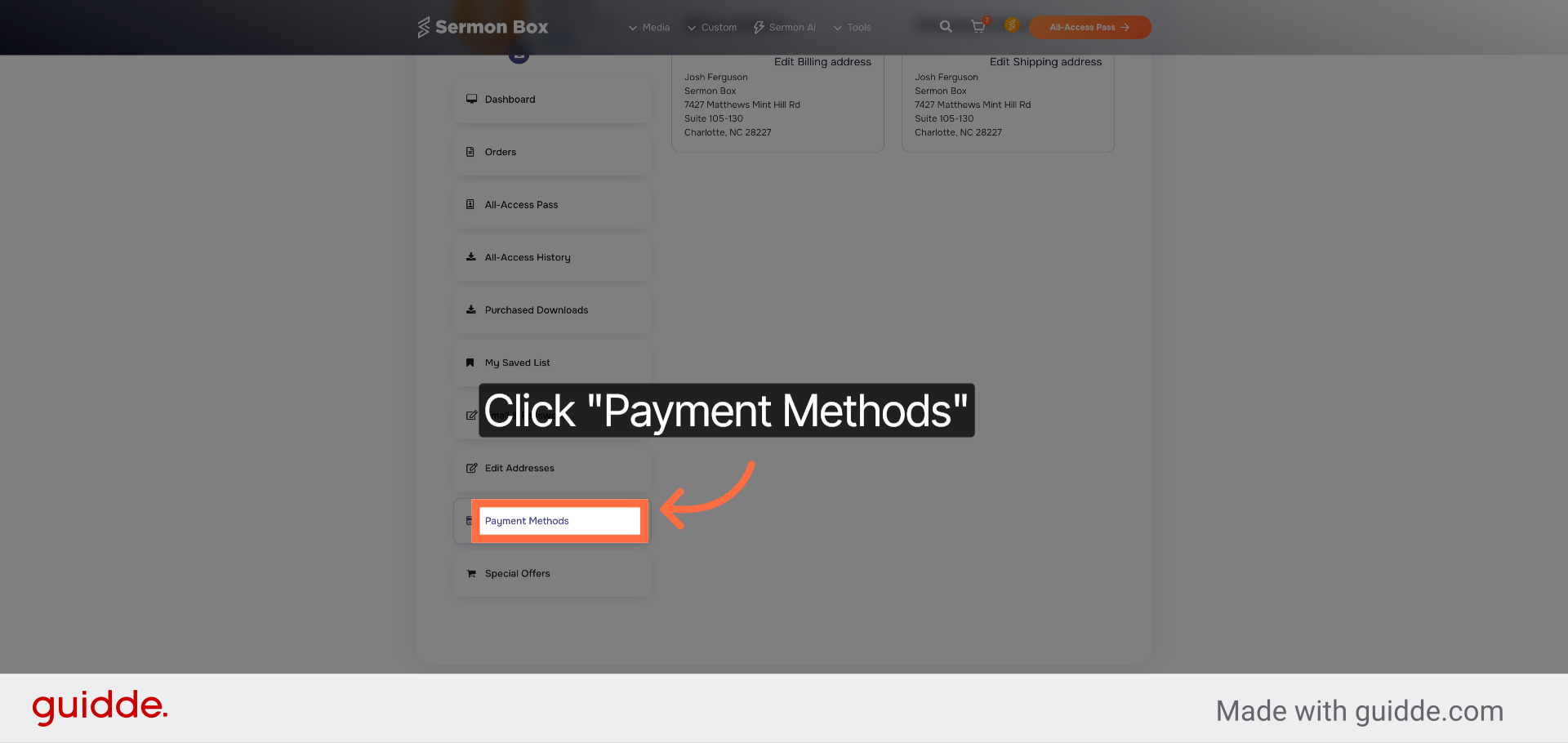
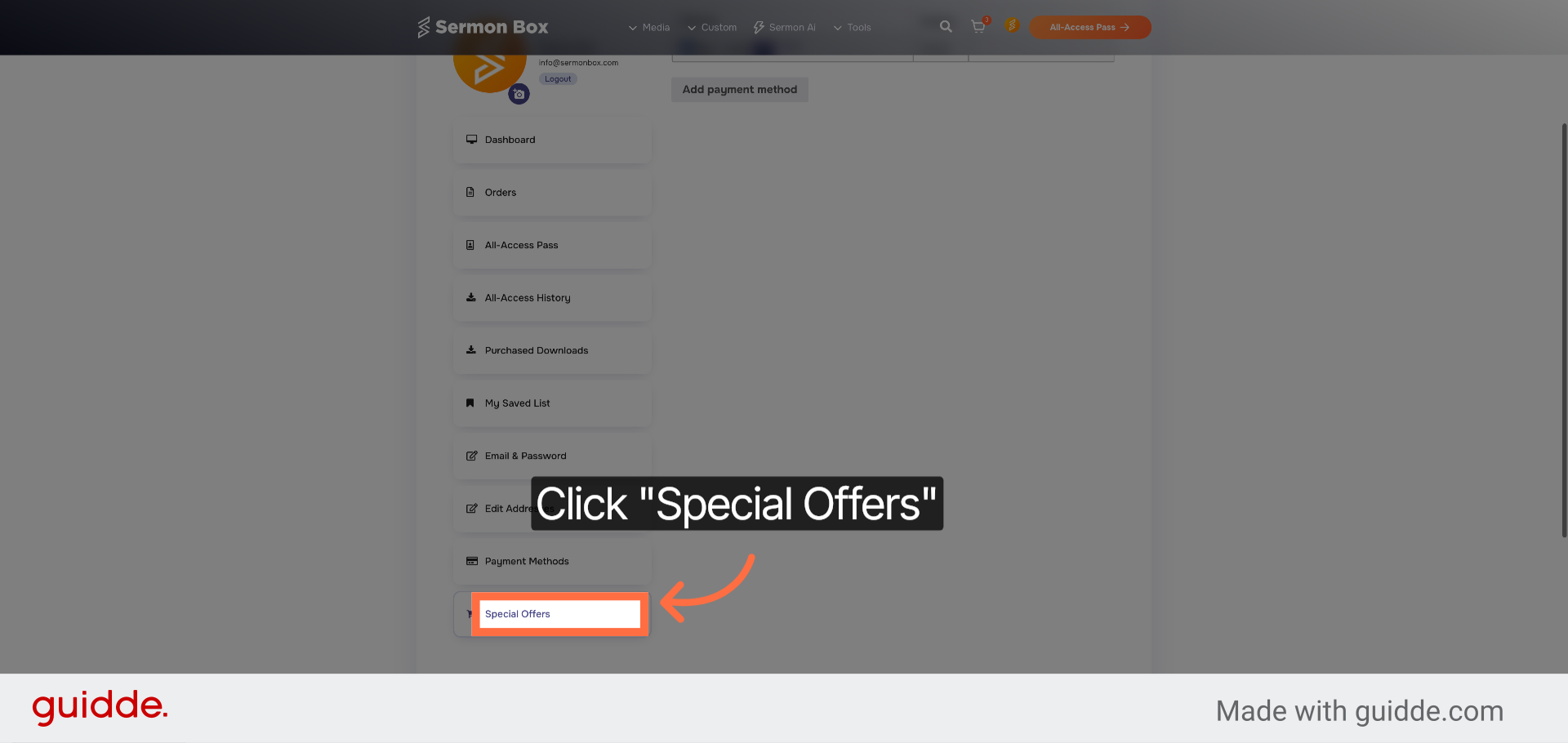
17. View Special Offers
Click "Special Offers" to explore current promotions and exclusive deals available to you.
You have successfully navigated through the Account Area, managing orders, subscriptions, personal information, and payment settings. To continue, explore additional account features or update your preferences as needed.
Related Articles
Submit Custom Sermon Series Order Using Sermonbox
Submit Custom Sermon Series Order Using Sermonbox This tutorial guides you through submitting a custom sermon series order using Sermonbox Go to sermonbox.com 1. Introduction Before starting, ensure you have your sermon details and preferences ready ...Download All-Access Packs Efficiently in Sermonbox
Download All-Access Packs Efficiently in Sermonbox This tutorial guides you through downloading all-access packs in Sermonbox Go to sermonbox.com 1. Introduction Before starting, ensure you have an active account and access to the Sermonbox platform. ...Access & Generate Using SermonAi
Access And Create Sermon Series Using SermonAi This tutorial guides you through accessing SermonAi in Sermonbox and creating a customized 4-week sermon series with supporting devotional content Go to sermonbox.com 1. Introduction Before starting, ...Access and Generate Sermon Notes
Access and Generate Sermon Notes in Sermonbox This tutorial guides you through accessing the Sermon Notes module in Sermonbox, enabling you to view and generate sermon notes efficiently Go to sermonbox.com 1. Introduction Before starting, ensure you ...Submit Tax Exemption Forms
Submit Tax Exemption Forms Efficiently Using Sermonbox This tutorial guides you through submitting a tax exemption form using Sermonbox Go to sermonbox.com 1. Introduction You will learn how to access the E-595E form, fill in your personal and ...